Extra Settings Module for Perfex CRM
1. Prerequisites & Installation
Follow these standard steps to integrate the module into your system[cite: 1]:
- Make sure your Perfex CRM core system is installed and up to date[cite: 1].
- Upload and extract the purchased module zip file into the
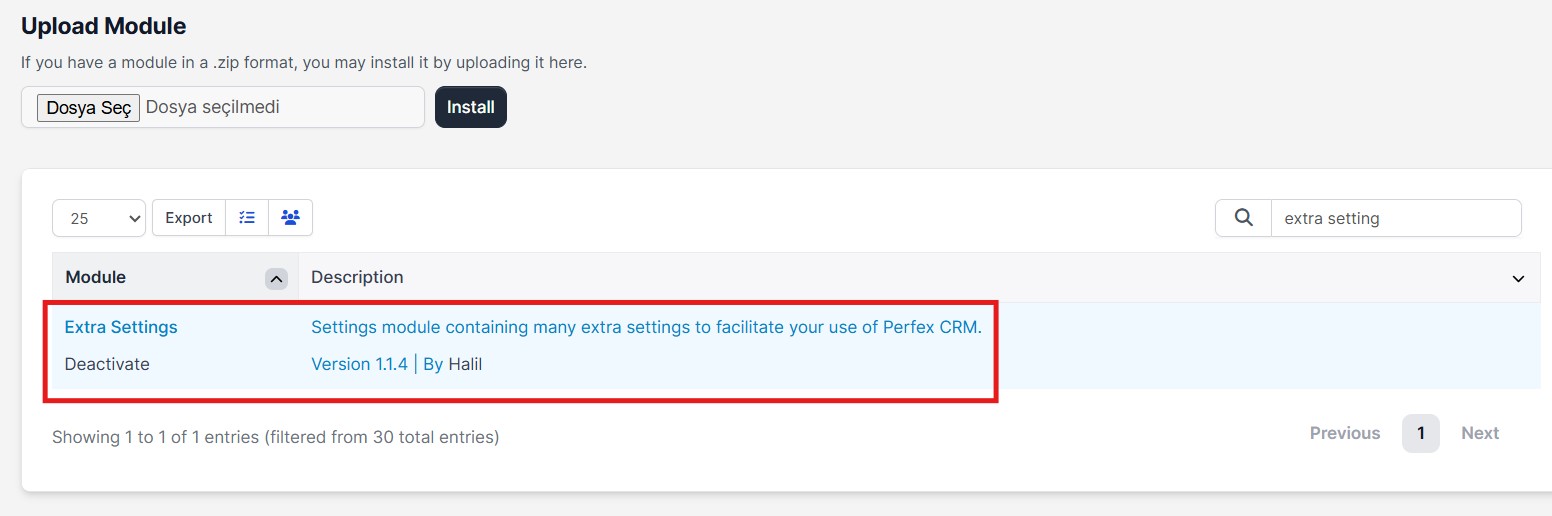
modules/directory on your server[cite: 1]. - Go to Setup -> Modules in the admin panel and activate the Extra Settings module[cite: 1].
2. Staff Permissions
After activating the module, you need to grant permission to your team members so they can access the extra settings panel[cite: 1]. Go to Setup -> Staff, select the relevant staff member, and enable the module permissions[cite: 1].

3. Accessing the Module Settings Panel
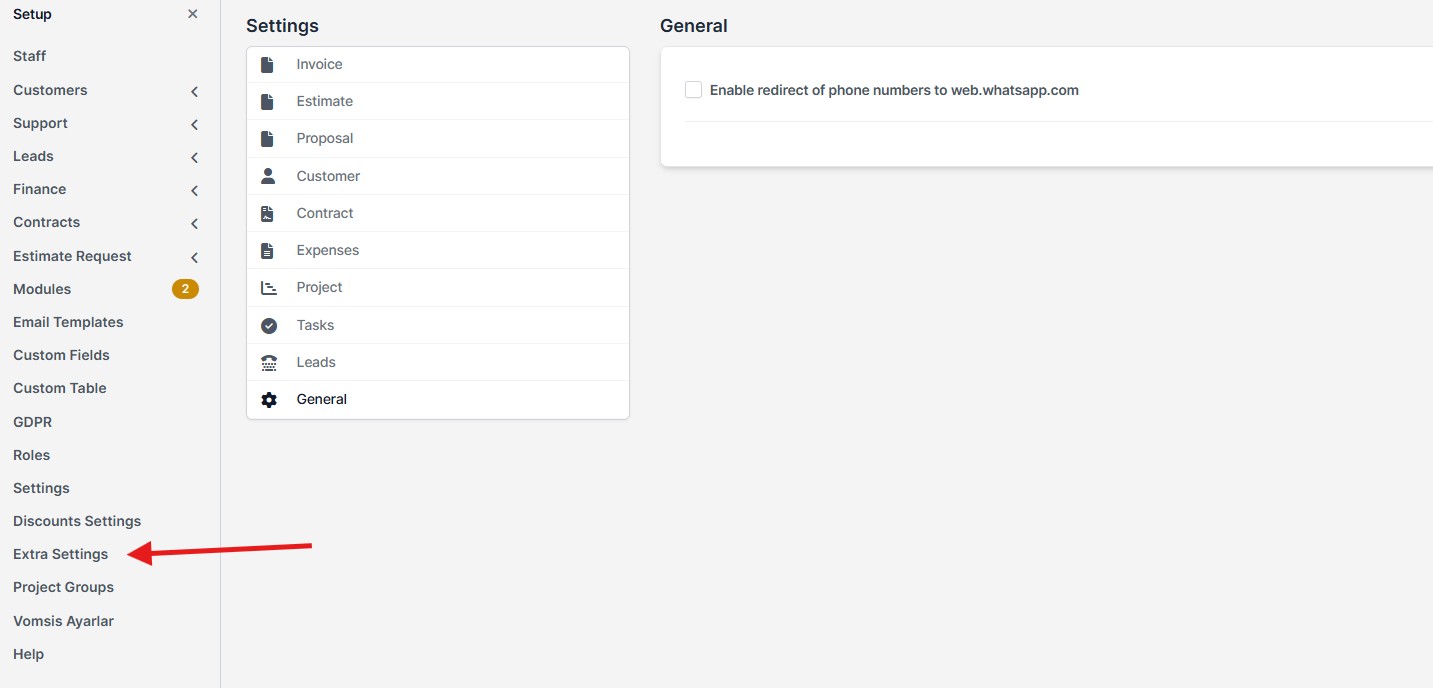
Once activated, the module provides a central control panel to manage settings for all categories[cite: 1]. To access this panel[cite: 1]:
- Click Setup at the bottom of the main Perfex CRM menu[cite: 1].
- Click Extra Settings from the menu list[cite: 1].
- On the screen that opens, you will see a vertical side tab listing all configurable modules (Invoice, Estimate, Proposal, Customer, Contract, etc.) on the left[cite: 1]. The right side displays toggleable extra features for the selected module[cite: 1].
4. Invoice Settings
Settings that simplify financial tracking and enrich invoice lists[cite: 1]:
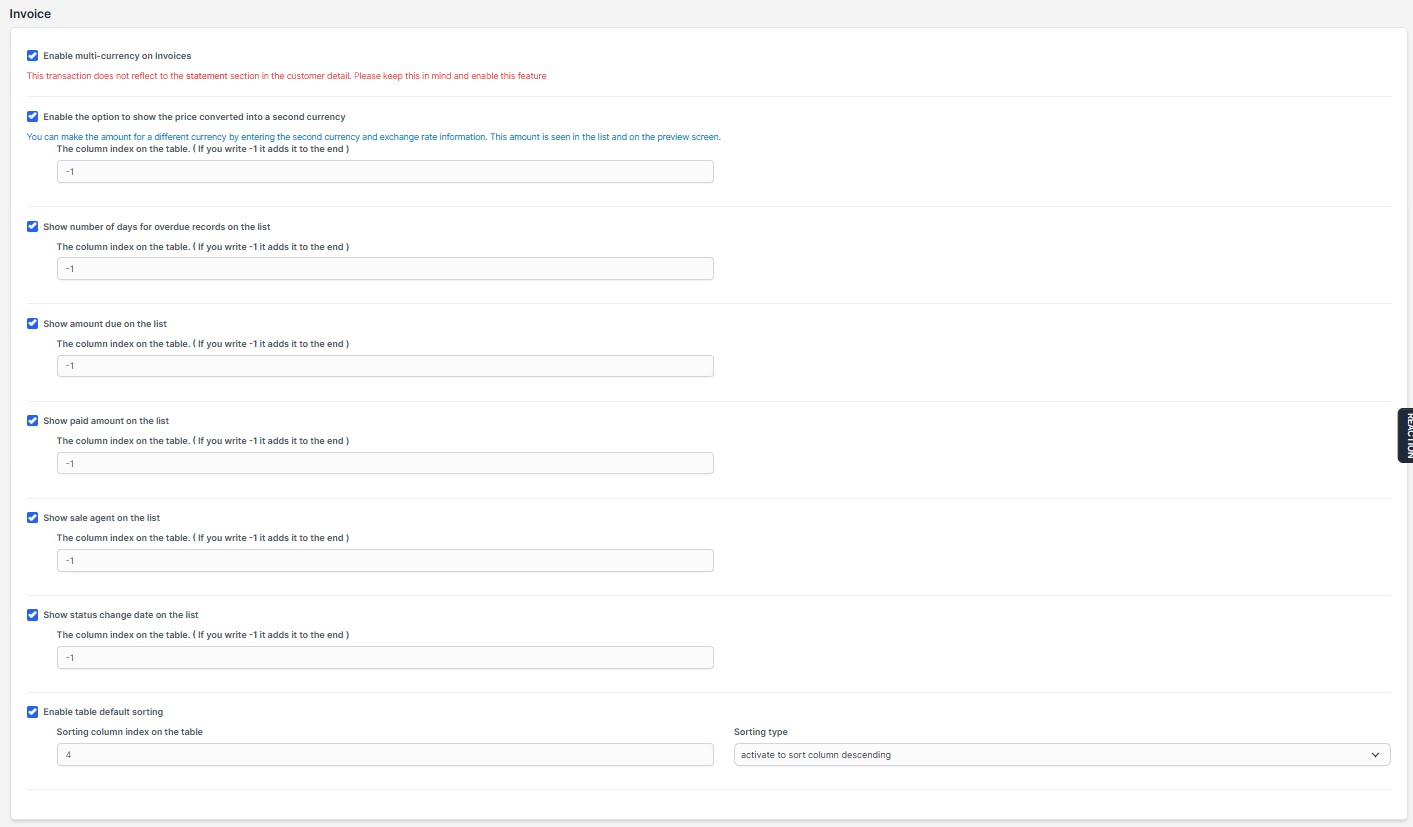
- Multi-Currency: Issue invoices to customers in different currencies[cite: 1]. When enabled, a currency selection box becomes active when creating an invoice[cite: 1].
This action does not reflect in the statement section under customer details[cite: 1].
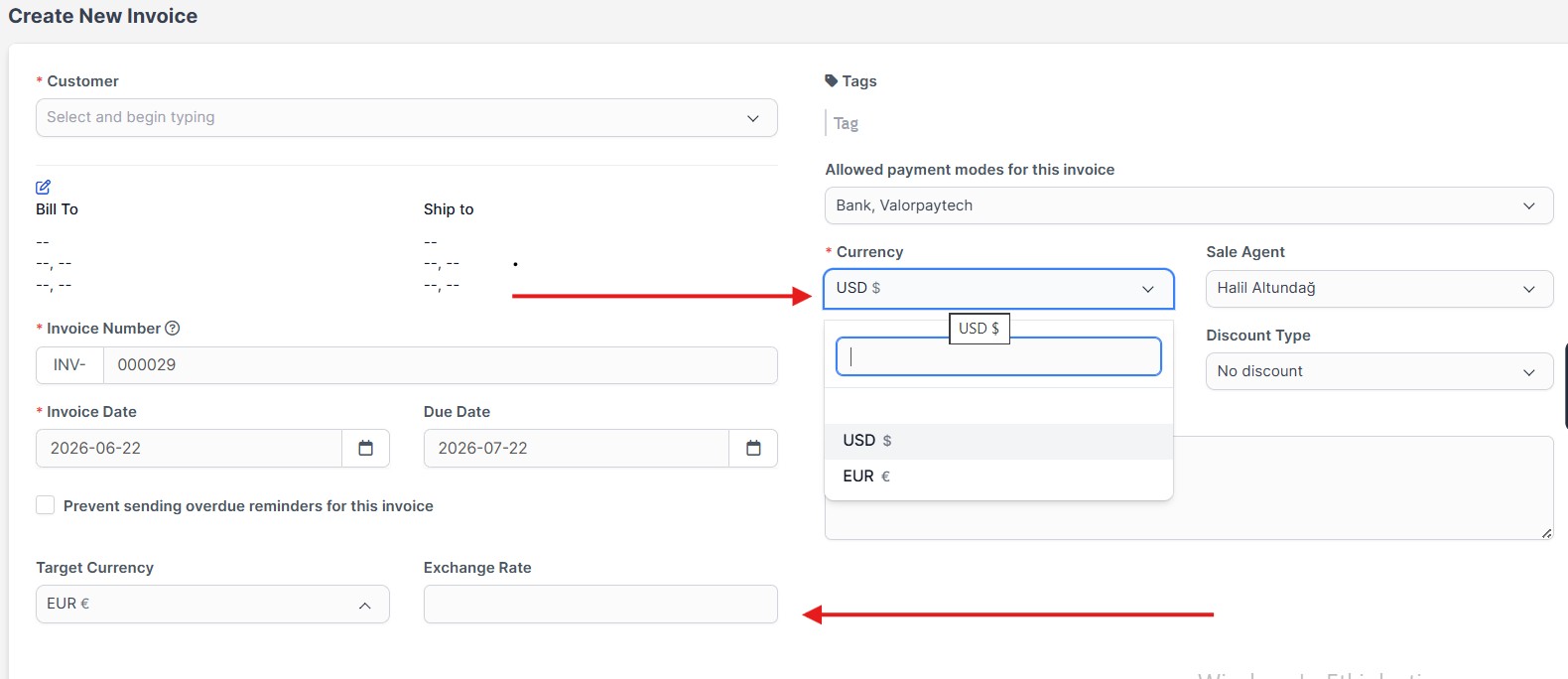
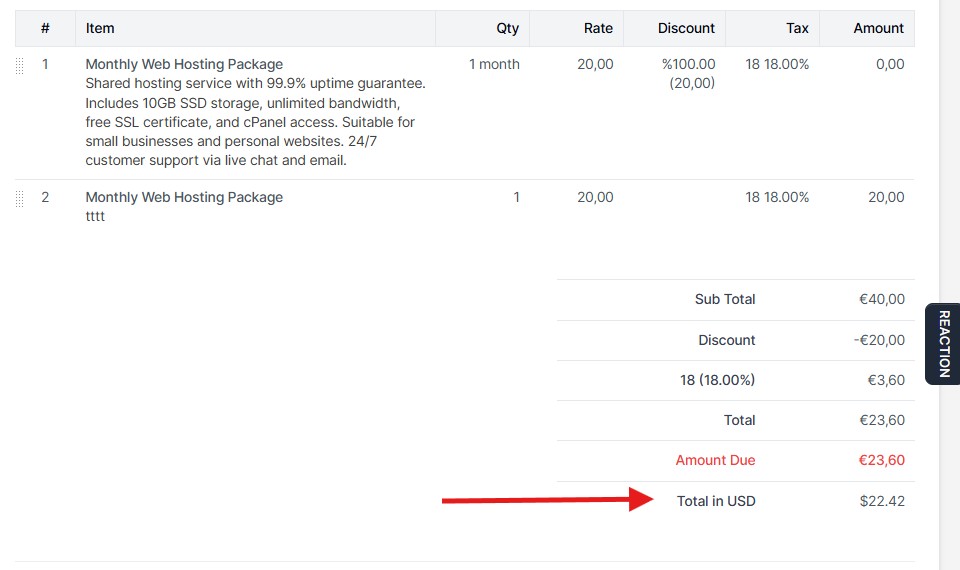
- Secondary Currency: When you enable the option to add a second currency to your invoice, fields for 'Target Currency' and 'Exchange Rate' appear during invoice creation[cite: 1]. Total information in the selected currency is added to the footer section, and a new column showing the converted total is added to the list[cite: 1]. This makes it easy to track invoices issued in local currency on a foreign currency basis[cite: 1].
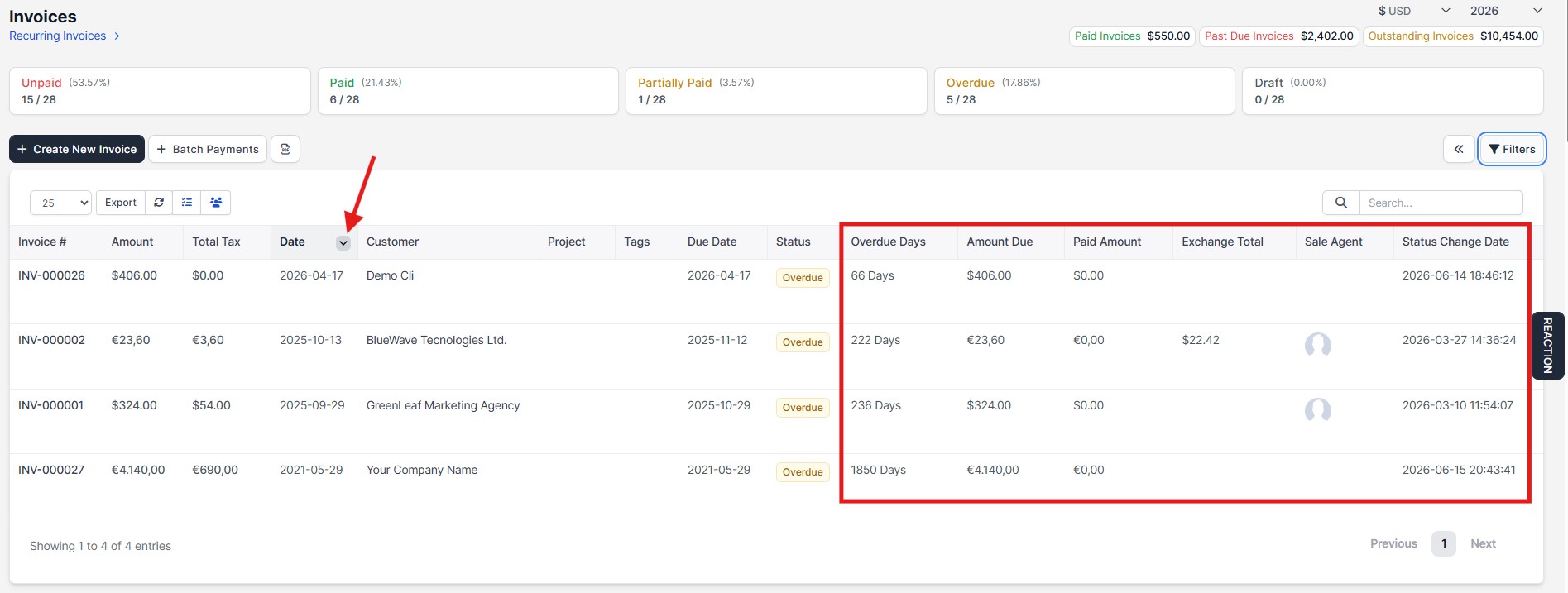
- Overdue Days Count: Adds a new column to the invoice list showing how many days an overdue invoice is past its due date[cite: 1].
- Remaining Balance Due: Allows you to see the net remaining balance directly on the list for partially paid invoices[cite: 1].
- Sales Agent Tracking: View the sales agent responsible for the invoice directly from the invoice list[cite: 1].
- Status Change Date: Track when an invoice status last changed (e.g., Unpaid -> Paid) on a daily basis from the list[cite: 1].
- Default Sorting: Set which column the invoice list is sorted by when opened[cite: 1].
5. Contract Settings
Improvements for flexible contract management[cite: 1]:
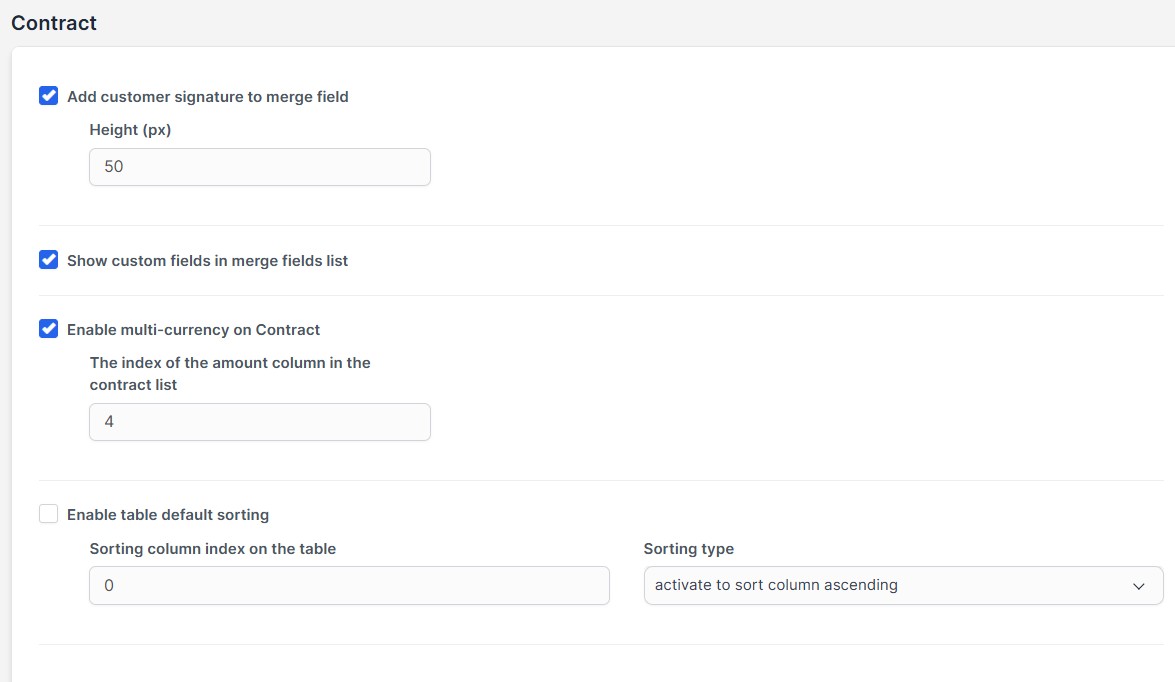
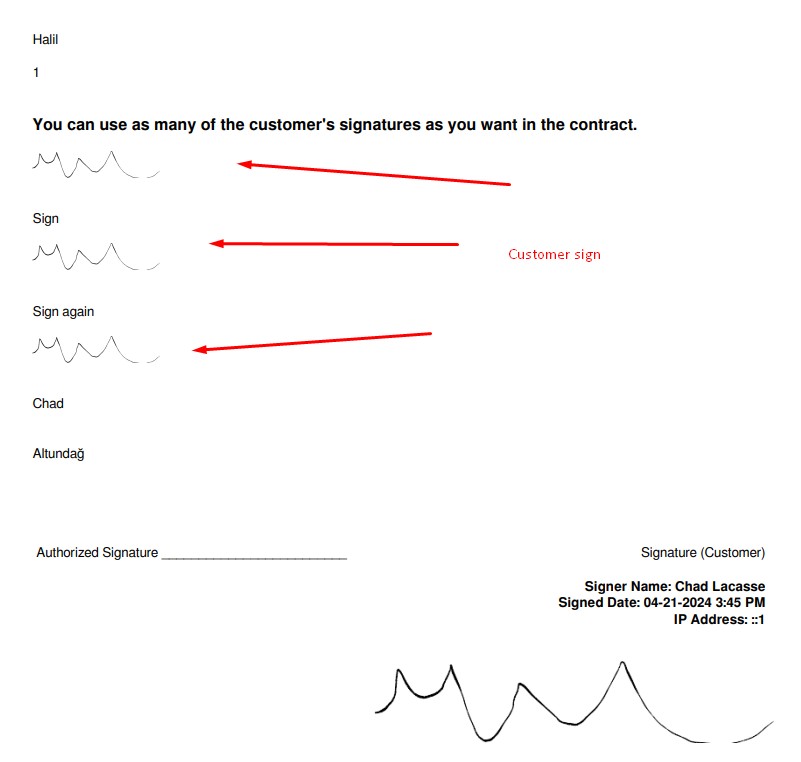
- Contract Signature Merge Field: Add your customer's digital signature into the contract text as a shortcode (merge field) and set the signature size[cite: 1]. This allows the signature to automatically display in multiple areas of the template[cite: 1].
Warning: This feature works on Perfex 3.1.2 and earlier versions[cite: 1]!
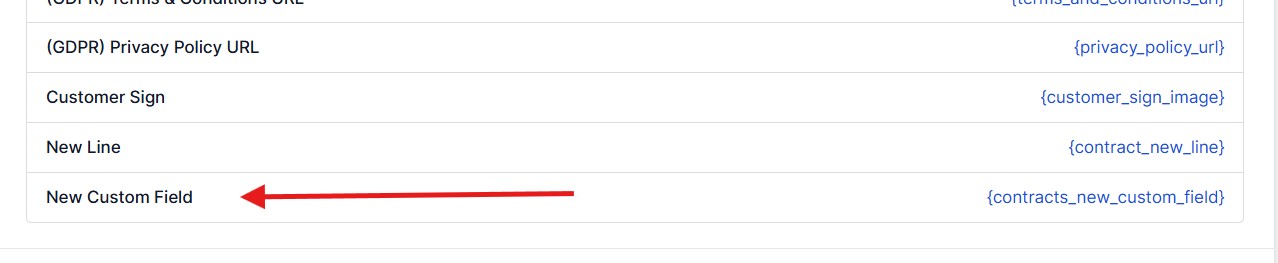
- Custom Fields in Merge Fields: When enabled, your custom field values are added to the contract's Available merge fields list[cite: 1].
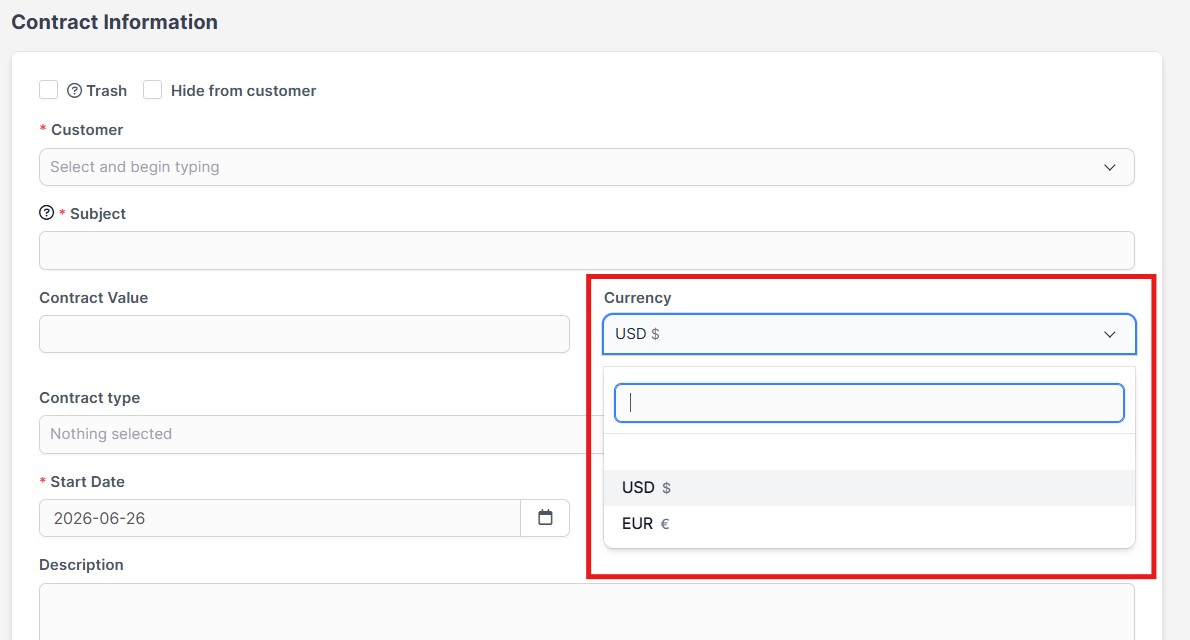
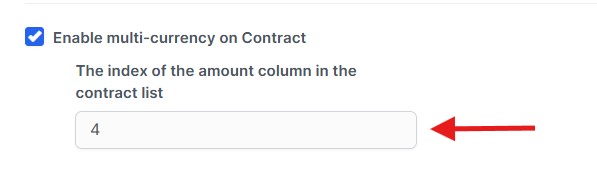
- Multi-Currency: Enable multi-currency support for contracts to prepare contracts in different currencies[cite: 1].
When activated, a currency selection field is added during contract creation and appears in the contract list[cite: 1].
To display properly in the contract list, you must enter the correct column index for the amount value[cite: 1].
- Default Sorting Feature: Select the default column used to sort the contract list automatically when loaded (e.g., Start Date, Contract Value)[cite: 1].
6. Proposal Settings
Additional features for proposal processes sent to customers[cite: 1]:
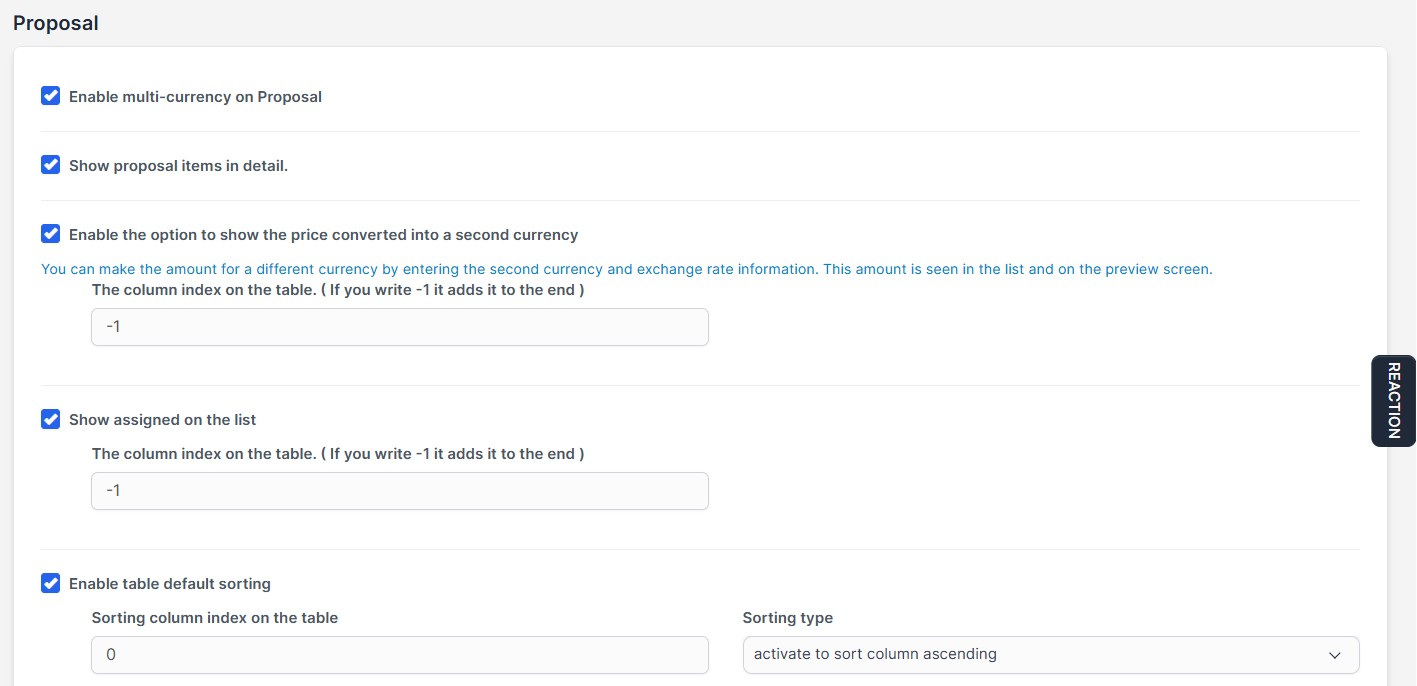
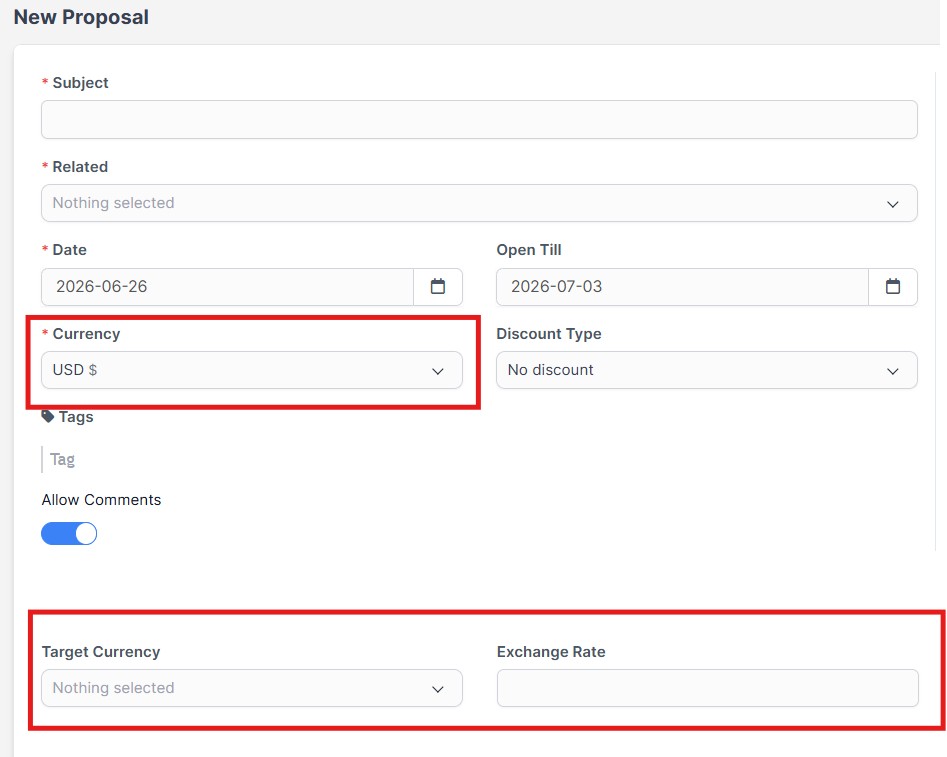
- Multi-Currency & Secondary Currency: Supports multiple currencies and exchange rate entries for proposals, just like in invoices[cite: 1].
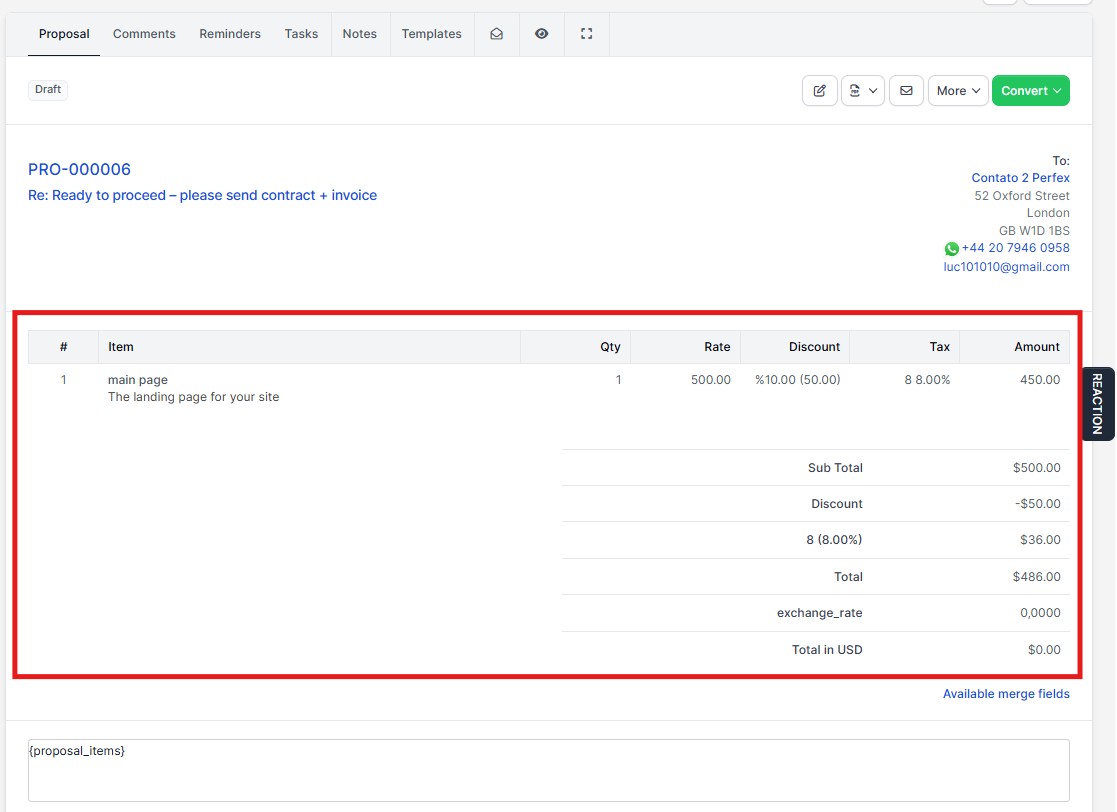
- Preview Proposal Items: Displays product/service items directly in the proposal detail preview[cite: 1].
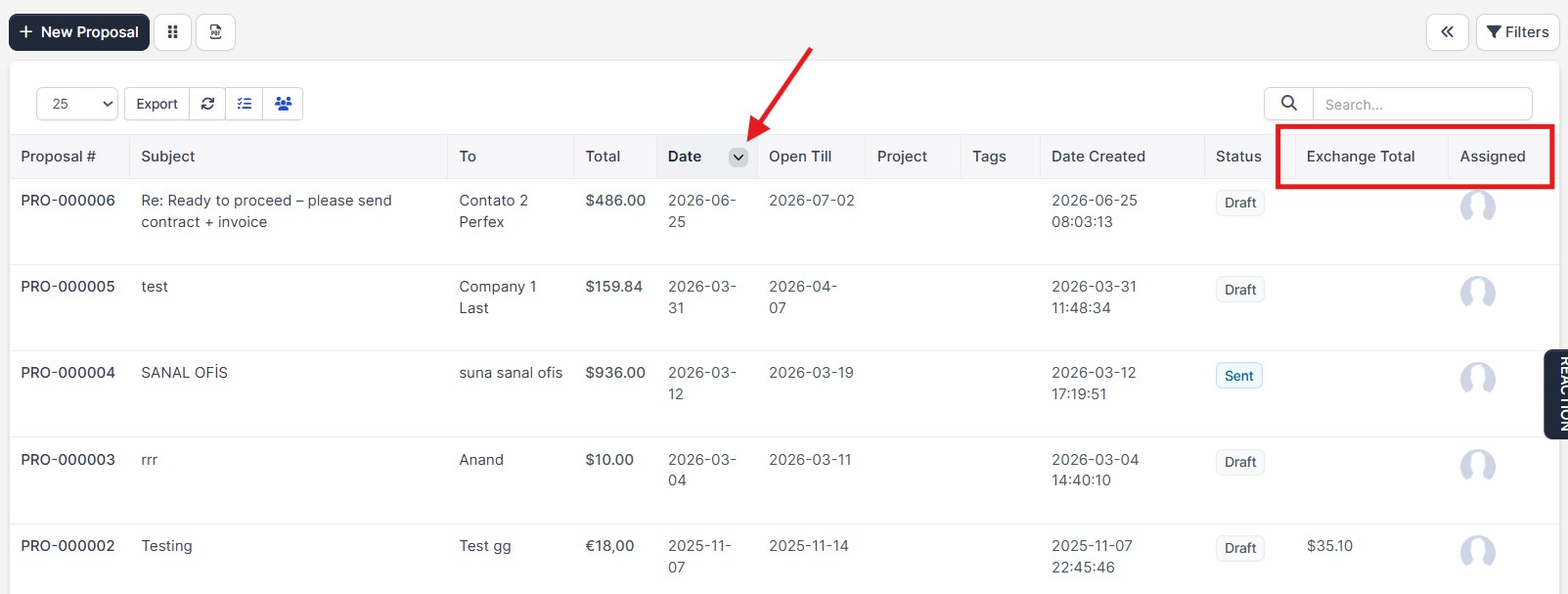
- Assigned Staff Tracking: View the assigned staff member directly in the proposal list[cite: 1].
- Default Sorting: Select default column-based sorting for the proposal list[cite: 1].
7. Estimate Settings
Additional features for estimate processes sent to customers[cite: 1]:
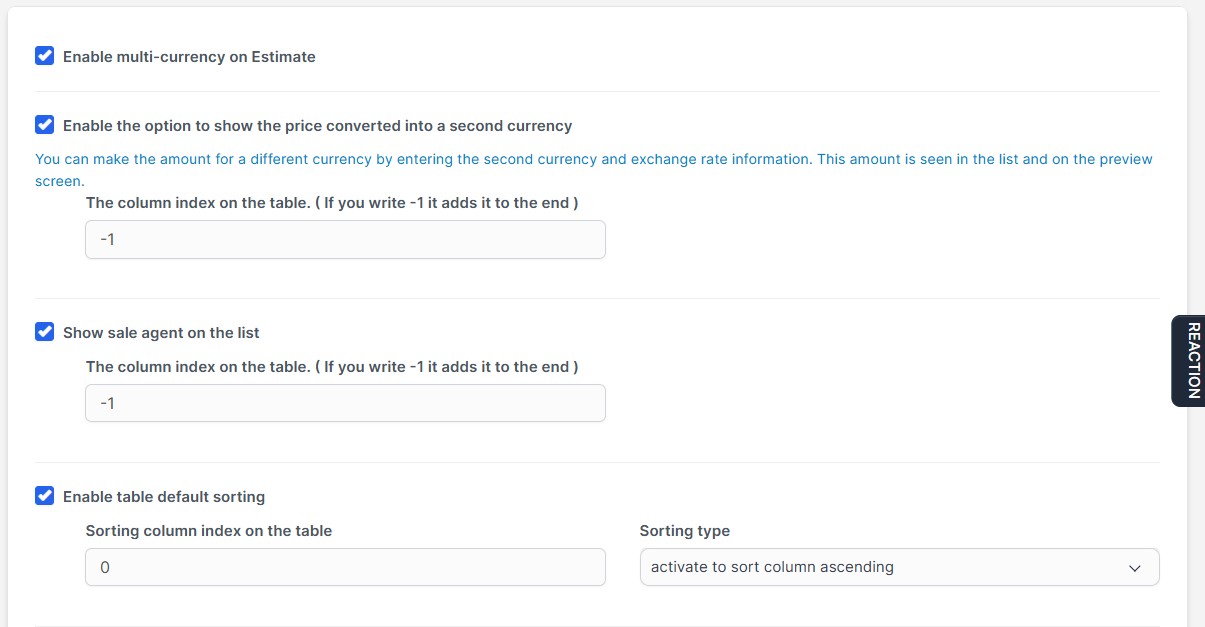
- Multi-Currency: Multi-currency support to prepare estimates in different currencies[cite: 1]. Adds a currency selection field, similar to invoices and proposals[cite: 1].
- Secondary Currency: Adds fields to include secondary currency and exchange rate information in the estimate document[cite: 1].
- Sales Agent Tracking: View the sales agent responsible for the estimate directly from the list[cite: 1].
- Default Sorting: Choose which column the estimate list is sorted by when opened[cite: 1].
8. Customer Settings
Improvements that strengthen customer cards and client tracking, the heart of CRM[cite: 1]:
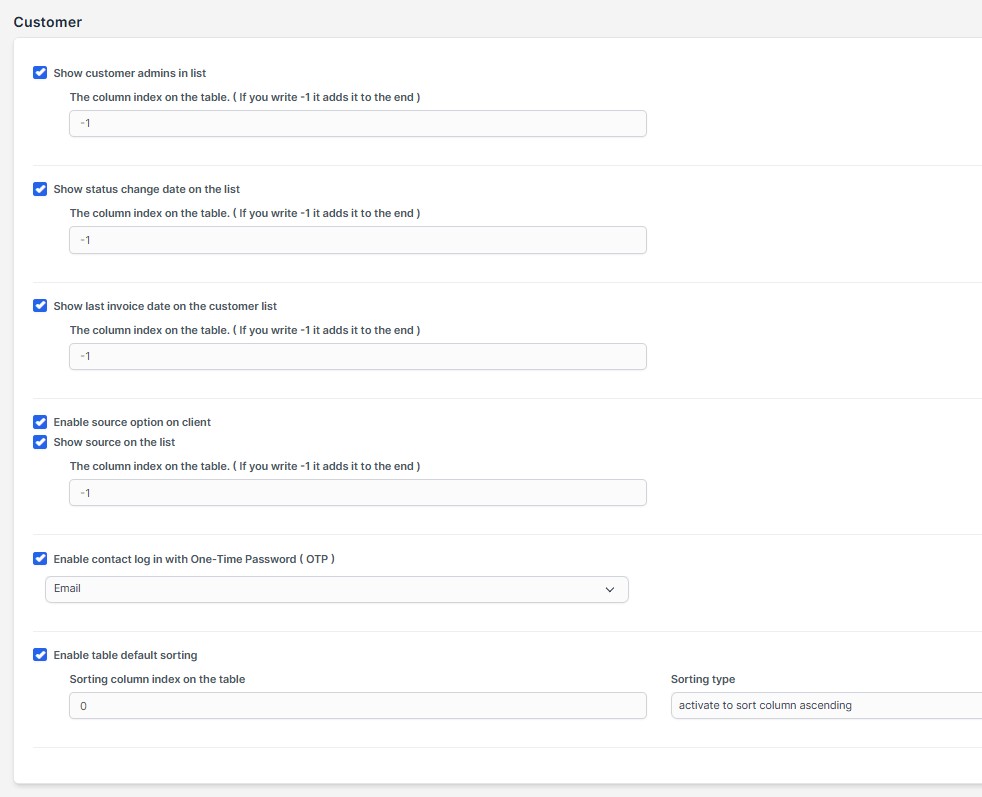
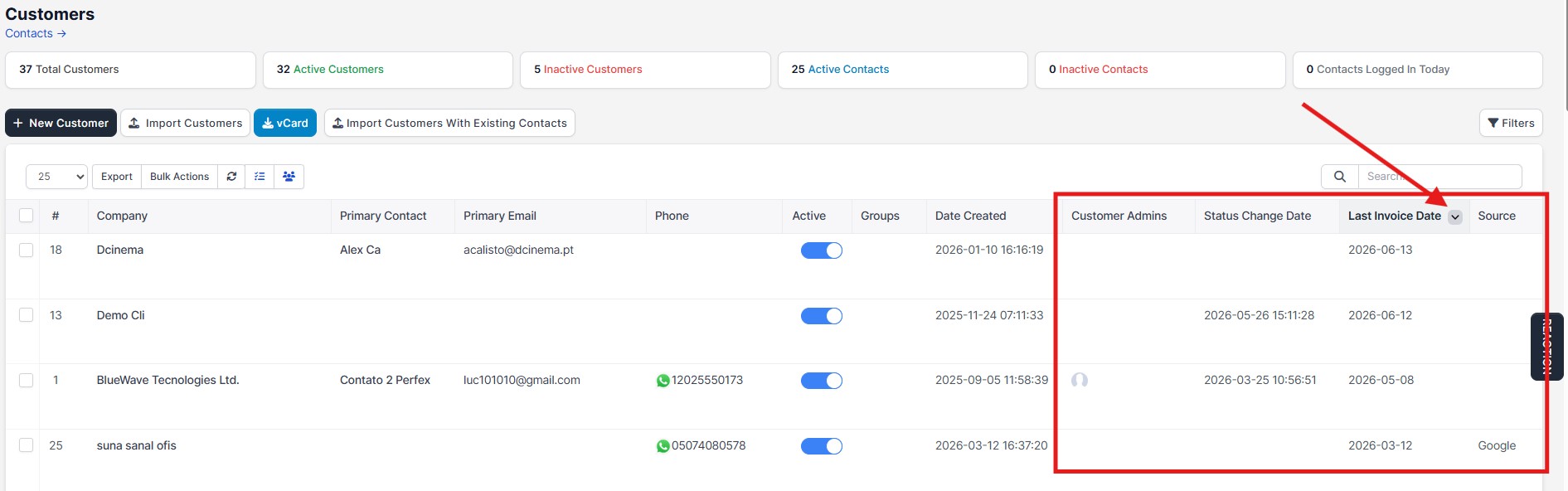
- Customer Admins: Quickly view staff members assigned to a customer in a single list column[cite: 1].
- Status Change Date: Track when a customer status (Active/Inactive) was updated directly from the list[cite: 1].
- Last Invoice Date: Adds a column showing the date of the latest invoice issued to the customer, helping you spot inactive or long-silent clients[cite: 1].
- Default Sorting: Select default column-based sorting for the customer list[cite: 1].
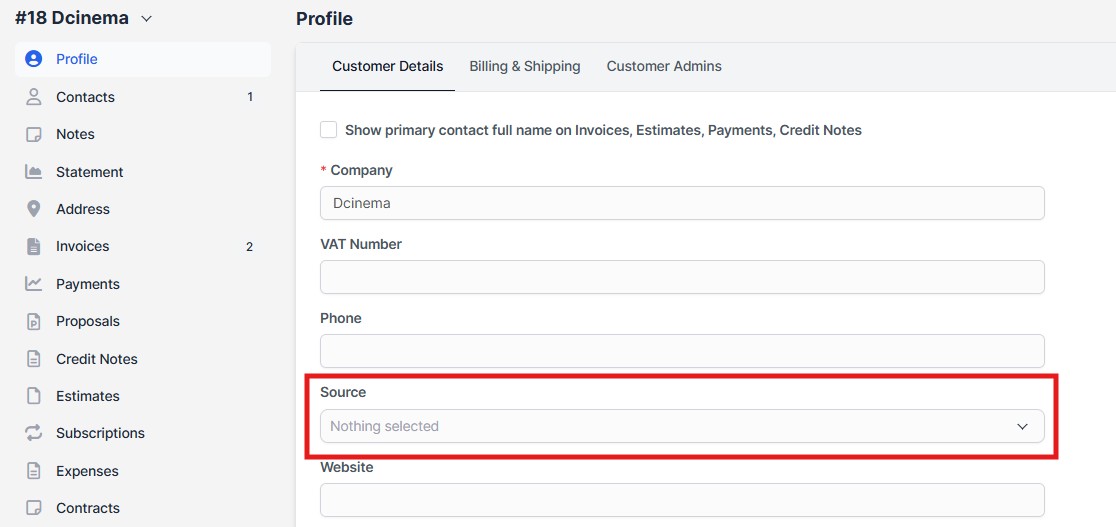
- Customer Source: Use the "Source" feature (e.g., Google, Facebook, LinkedIn), normally reserved for Leads, for actual customers to report where clients come from[cite: 1].
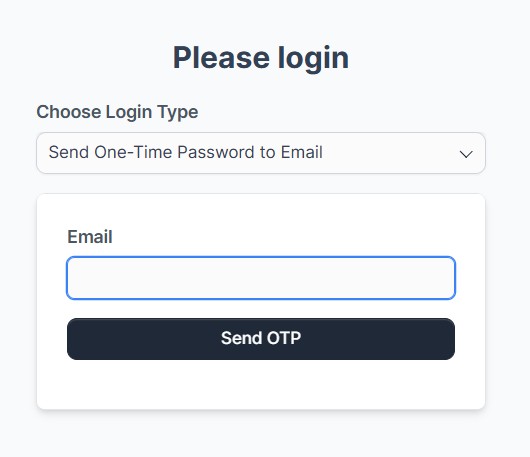
When enabled, a source selection field is added to customer details[cite: 1]. You can also add this source column to the customer list[cite: 1]. - Passwordless Mobile Login: Allows customers to log in to the portal quickly using their registered mobile phone number or email address without entering a username and password[cite: 1].
9. Expenses Settings
Improvements for more transparent expense management[cite: 1]:
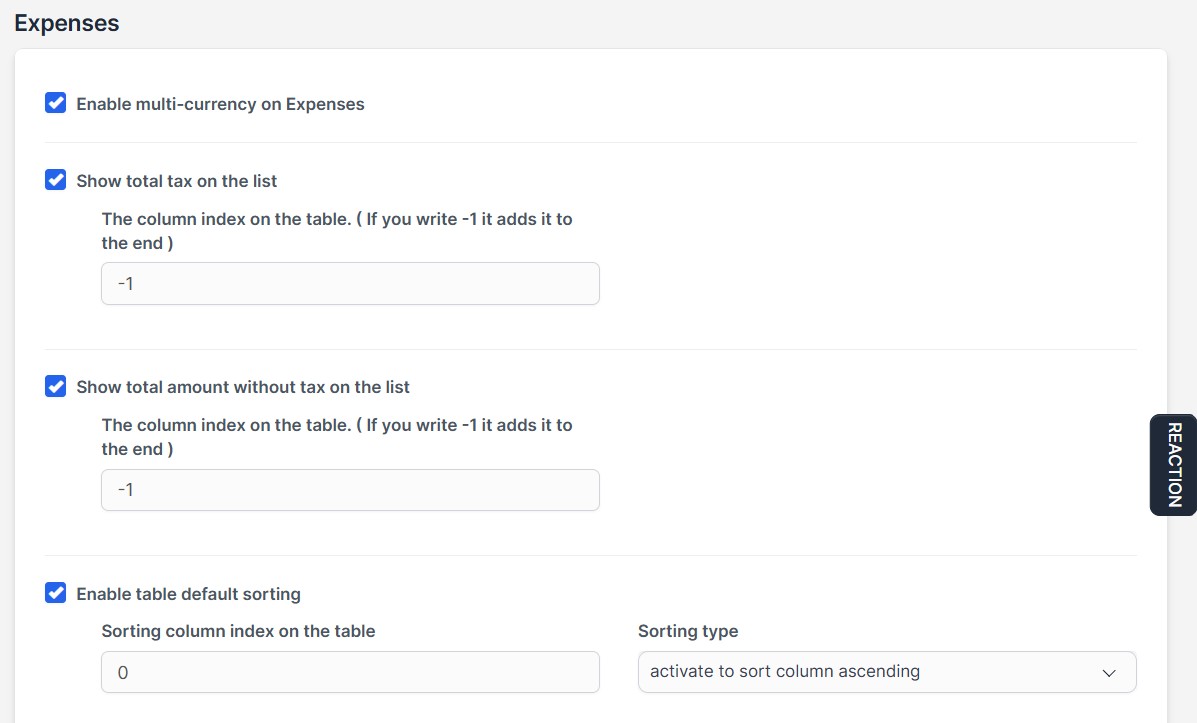
- Multi-Currency: Record and manage expenses in different currencies[cite: 1].
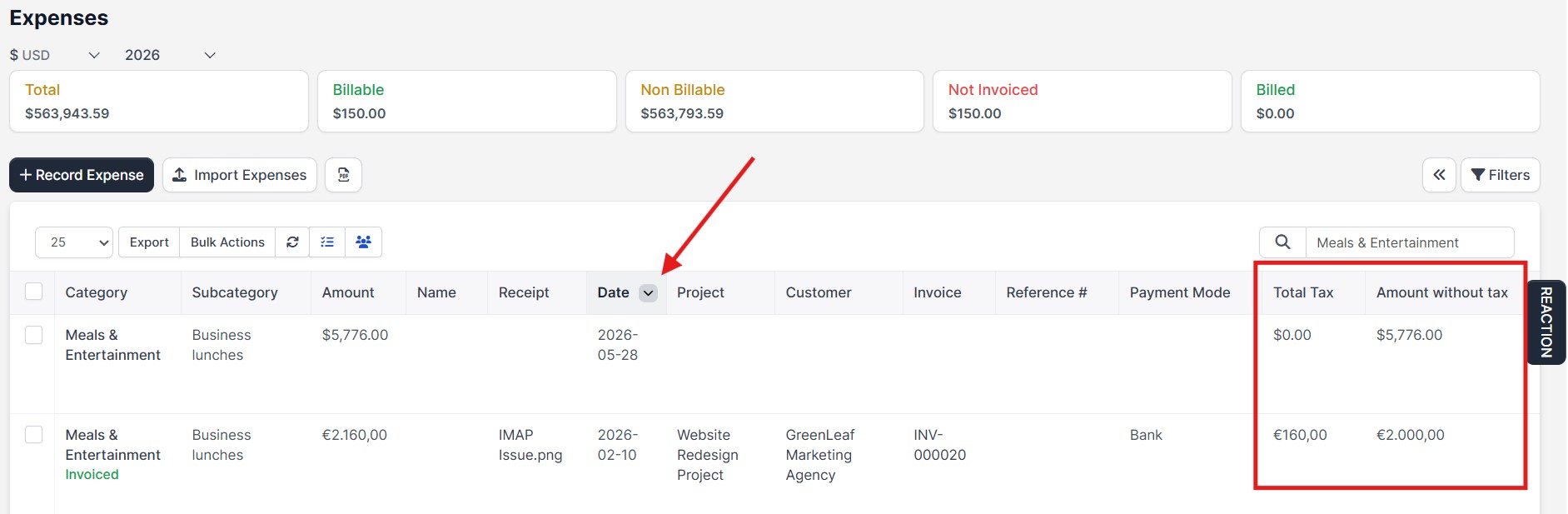
- Total Tax Amount Column: Track total tax amounts for expenses in a separate list column[cite: 1].
- Net Amount Excl. Tax Column: Easily track the subtotal (net amount excluding tax) in the expense list[cite: 1].
- Default Sorting: Select default column-based sorting for the expense list[cite: 1].
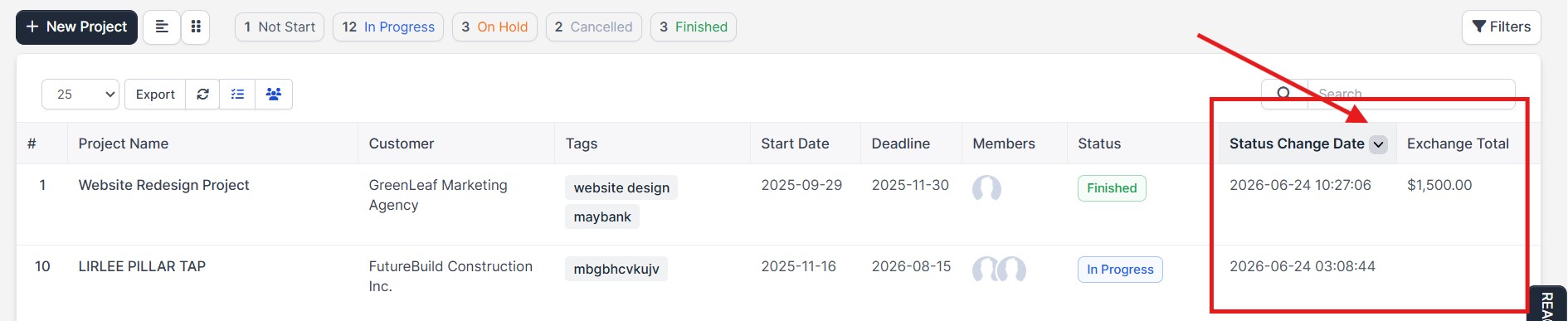
10. Project Settings
Table features that simplify project tracking[cite: 1]:
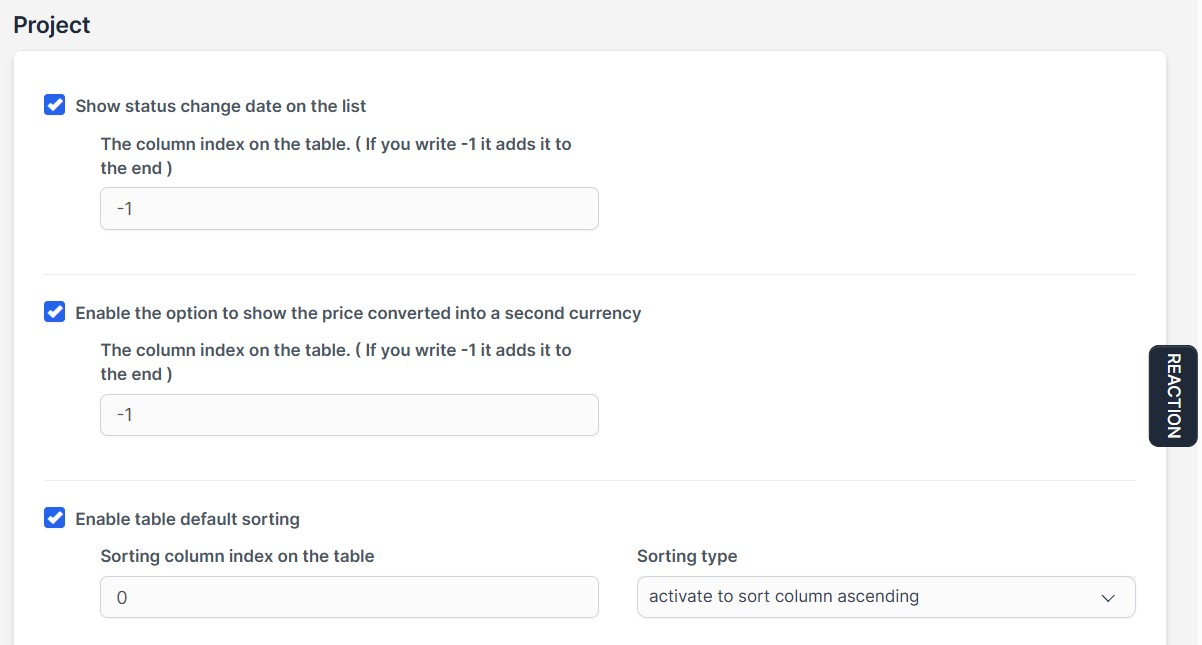
- Project Status Tracking: Track when project status (e.g., Not Started -> In Progress) was last changed directly from the list[cite: 1].
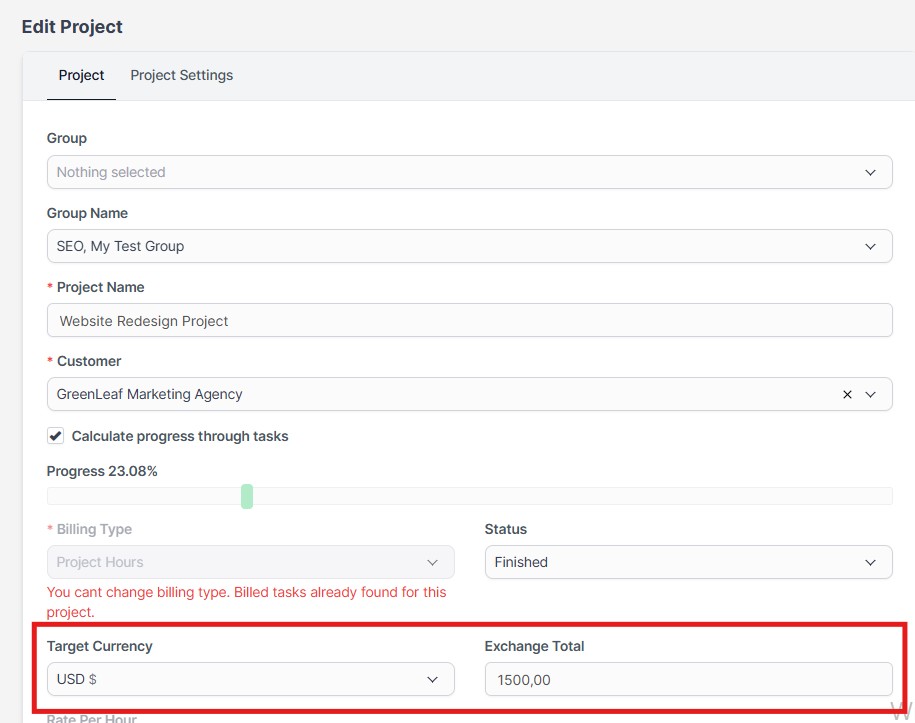
- Secondary Currency: Enable secondary currency in projects to track budget and cost in an alternative currency[cite: 1].
- Default Sorting: Select default column-based sorting for the project list[cite: 1].
11. Task Settings
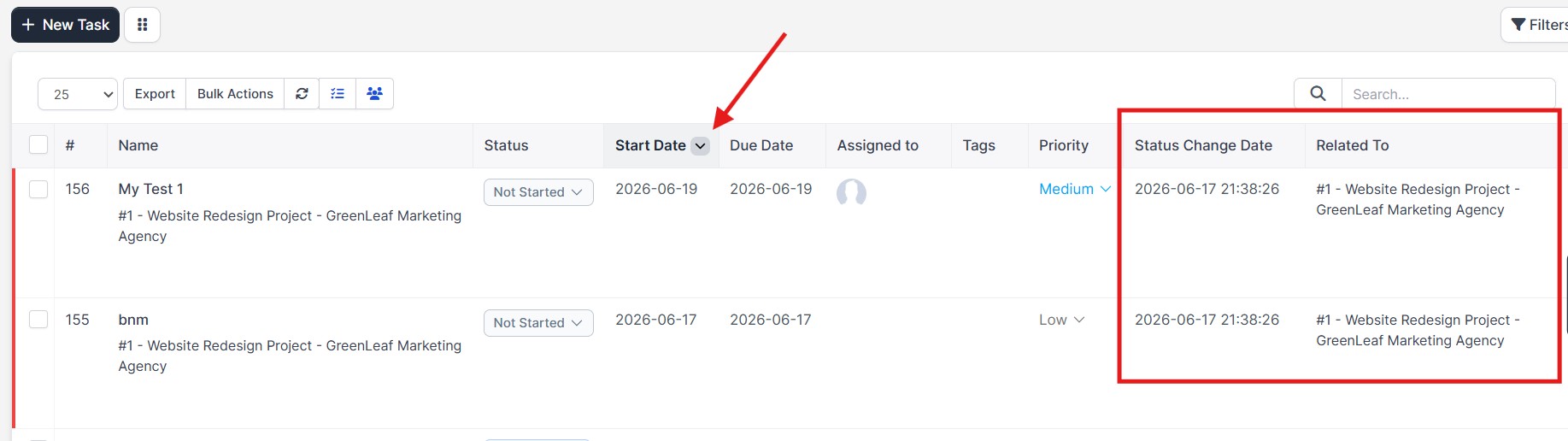
Table features that simplify task tracking[cite: 1]:
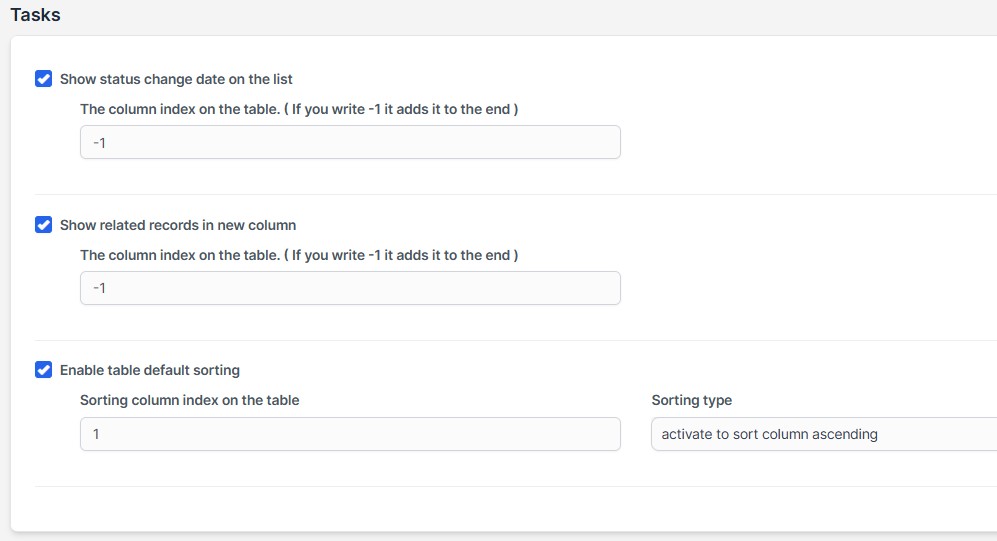
- Status Change Date: View when task status was last changed in a list column[cite: 1].
- Related Record Column: Adds a column showing which main record the task is linked to (e.g., Which Project, Invoice, or Customer) to simplify tracking[cite: 1].
- Default Sorting: Select default column-based sorting for the task list[cite: 1].
12. Leads Settings
Optimize lead forms and lists[cite: 1]:
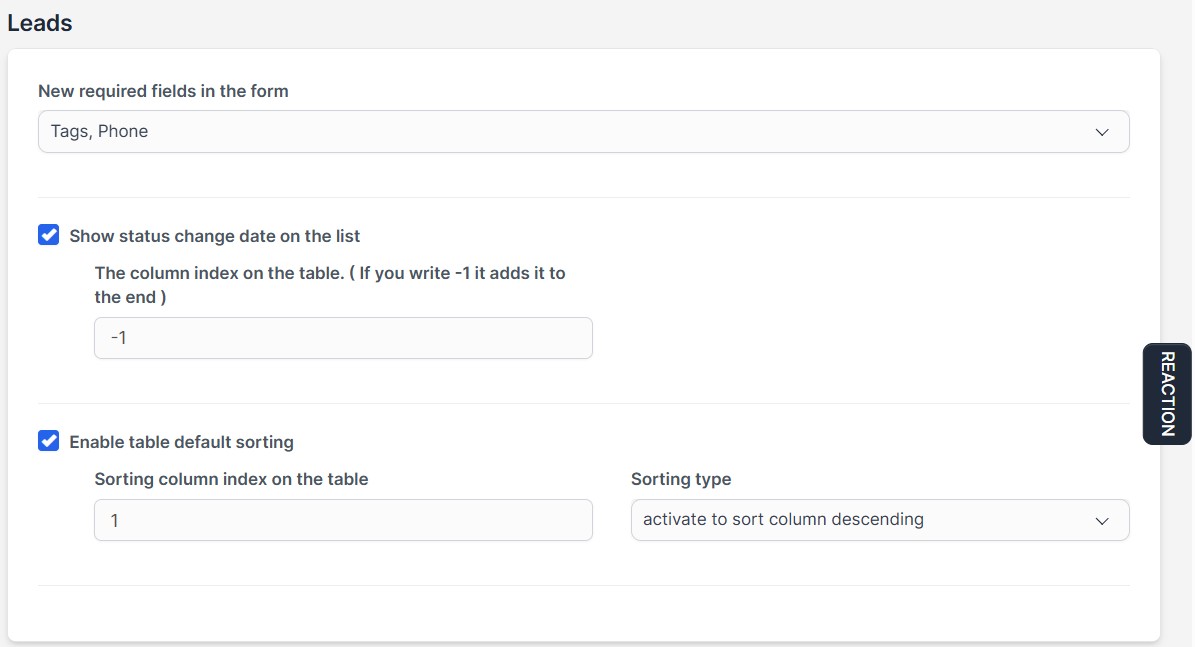
- New Required Fields: Set optional default lead form fields as "Required" based on your workflow[cite: 1].
Available fields: Tags, Phone[cite: 1]. Selecting values here makes those fields mandatory on the lead form[cite: 1].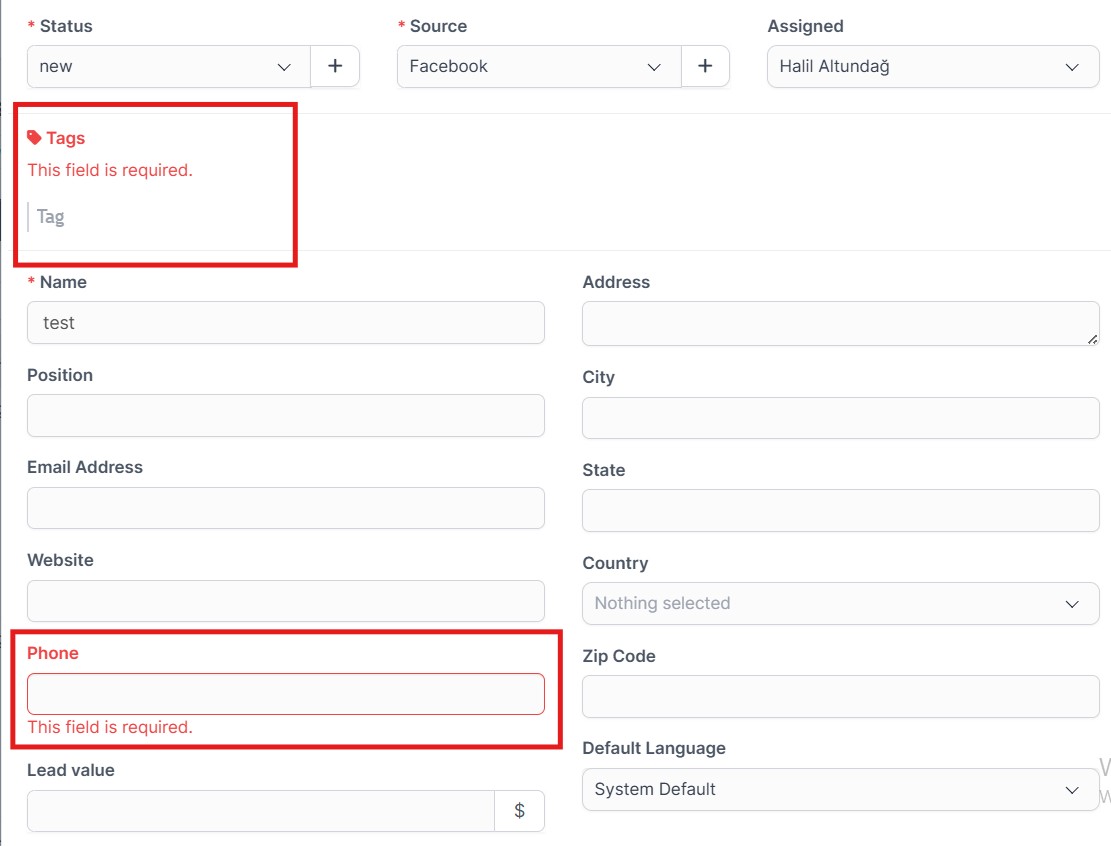
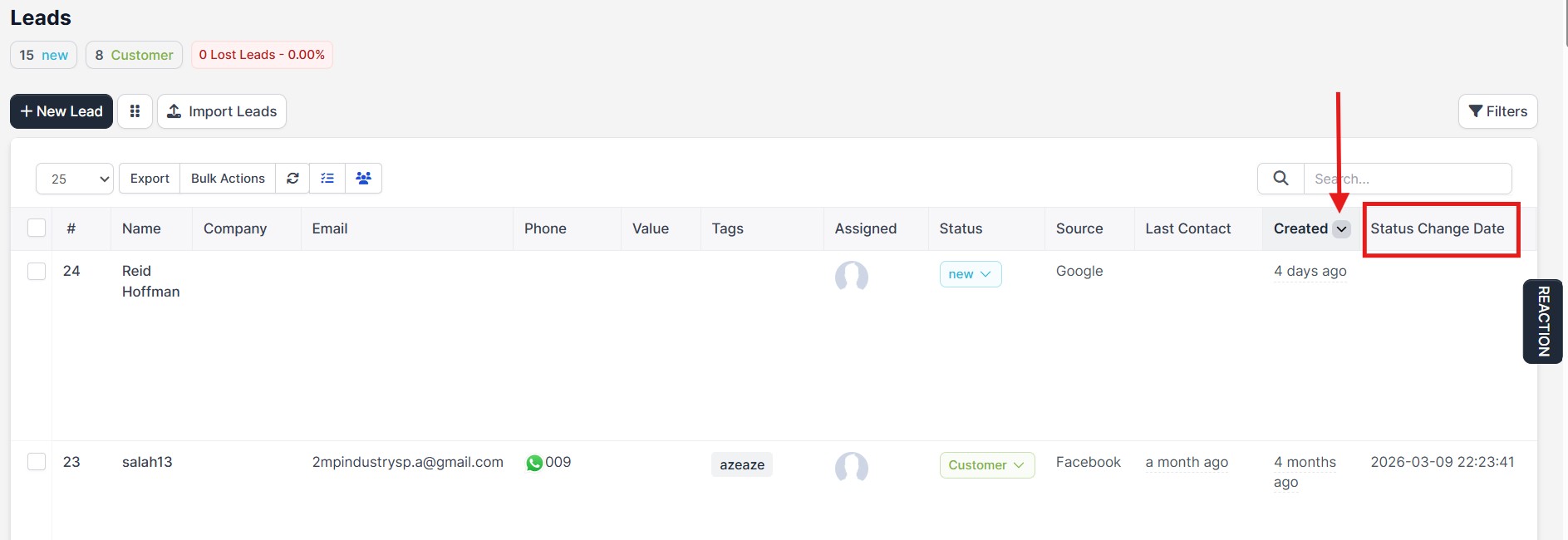
- Status Change Date: Instantly track when lead status was last updated directly on the list[cite: 1].
- Default Sorting: Select default column-based sorting for the lead list[cite: 1].
13. General (WhatsApp) Settings
Global feature that speeds up communication across the system[cite: 1]:
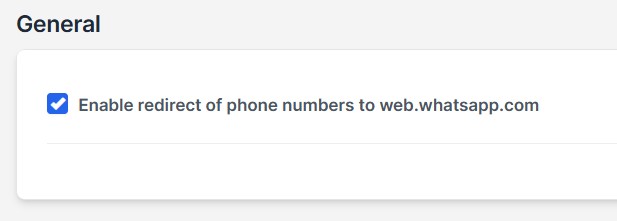
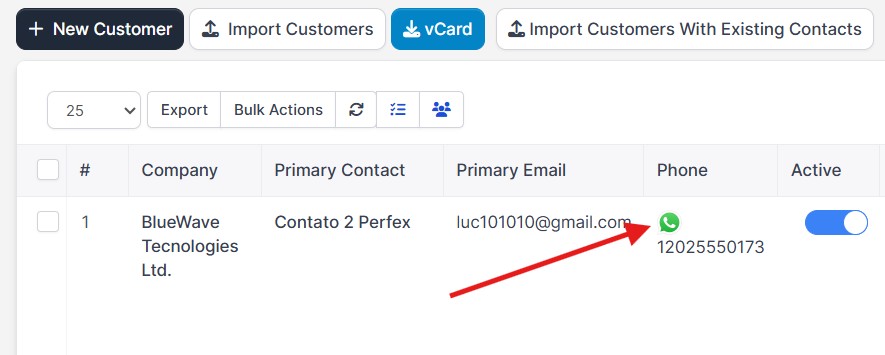
- WhatsApp Web Redirect: Adds a shortcut icon next to all phone numbers in the system, redirecting directly to
web.whatsapp.comwhen clicked[cite: 1]. This lets you start chatting with clients instantly on WhatsApp without saving numbers to your contacts[cite: 1].
Contact & Support
For any questions, custom feature requests, or documentation support regarding this module, feel free to get in touch with us[cite: 1]:
- CodeCanyon Profile: halilaltndg[cite: 1]
- Support Email: halilyazilim1@gmail.com[cite: 1]