Multiple Companies with the Same Primary Contact
Table of Contents
- Prerequisites & Installation
- Core Operational Logic
- Admin Panel: Contact Management and Linked Companies List
- Client Portal: Login and Company Switching Interface
- Real-World Use Case Scenarios
- Frequently Asked Questions (FAQ) & Troubleshooting
1. Prerequisites & Installation
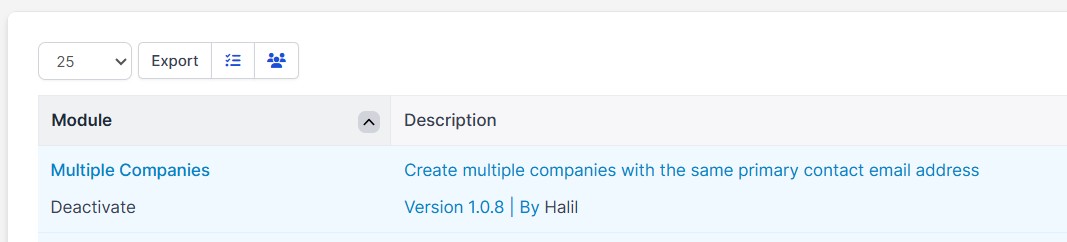
Follow the steps below to install and activate the module:
- Ensure that your Perfex CRM system is installed and up to date.
- Extract the purchased module zip file into the
modules/directory on your server. - Navigate to the Modules page in your admin panel and activate the module.
2. Core Operational Logic
Under normal conditions, Perfex CRM restricts each unique email address to only one customer contact. Thanks to this module:
- An individual (e.g., John Doe) can be the owner or authorized representative of 3 different companies.
- The exact same email address
john@example.comand password are defined for John Doe across all 3 companies. - The system securely maps this contact with all associated company database records in the background.
3. Admin Panel: Assigning Contacts to Multiple Companies
Linking a contact to multiple companies is remarkably straightforward:
- Navigate to the Customers list in the admin panel and create the relevant companies.
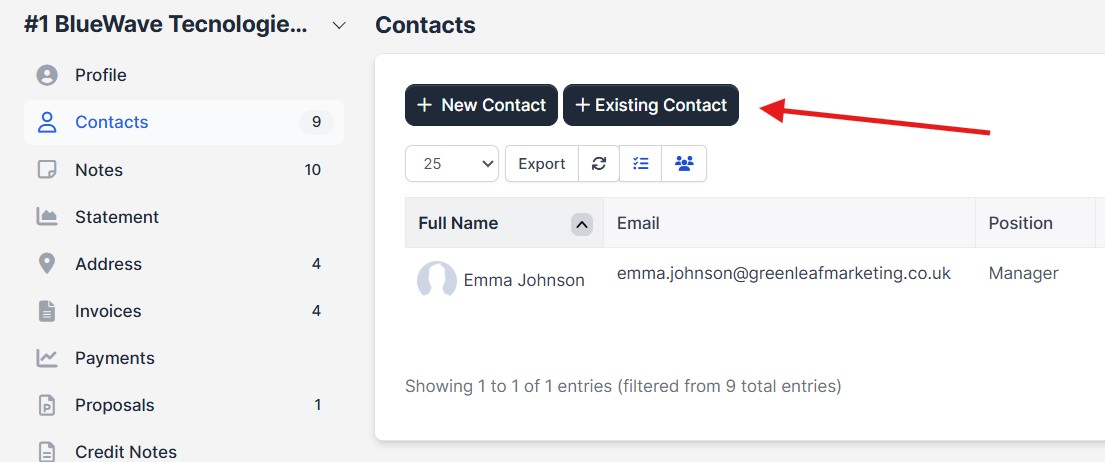
- Go to the Contacts tab within the company details view.
- When adding a new contact or editing an existing one, define the person's email address and password.
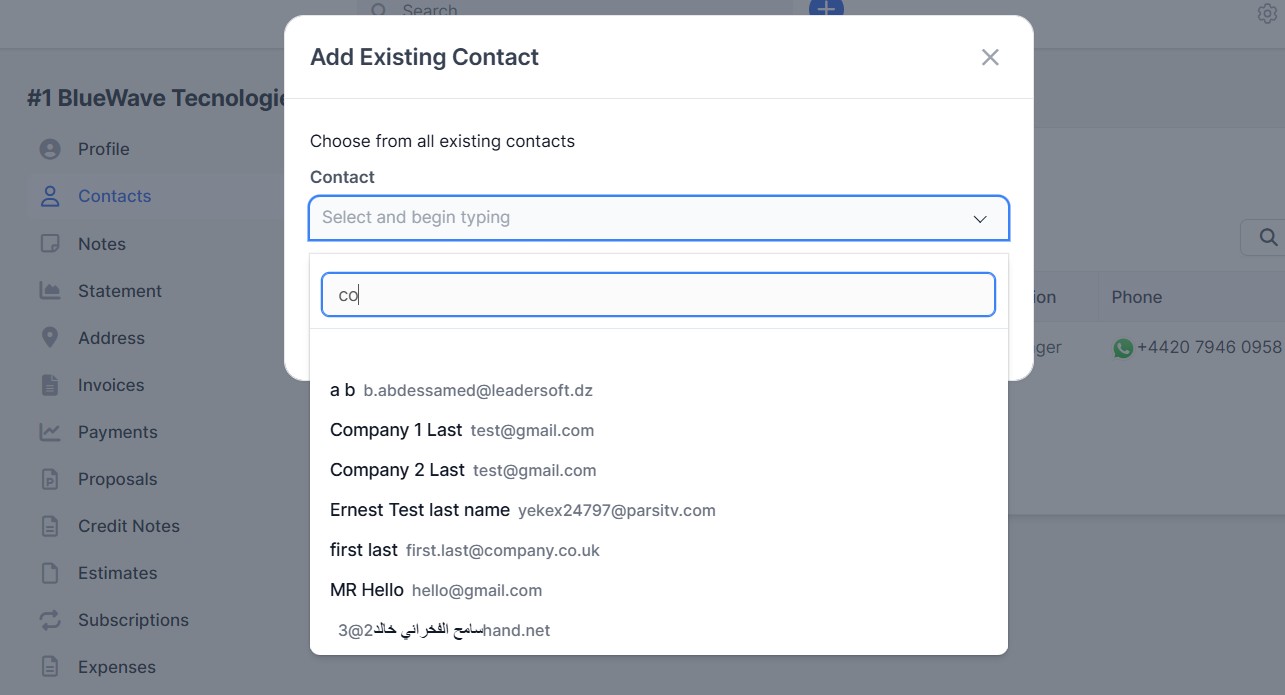
- You can use the exact same email address when adding contacts under other companies they own. The system will link the contact without triggering a duplication error.
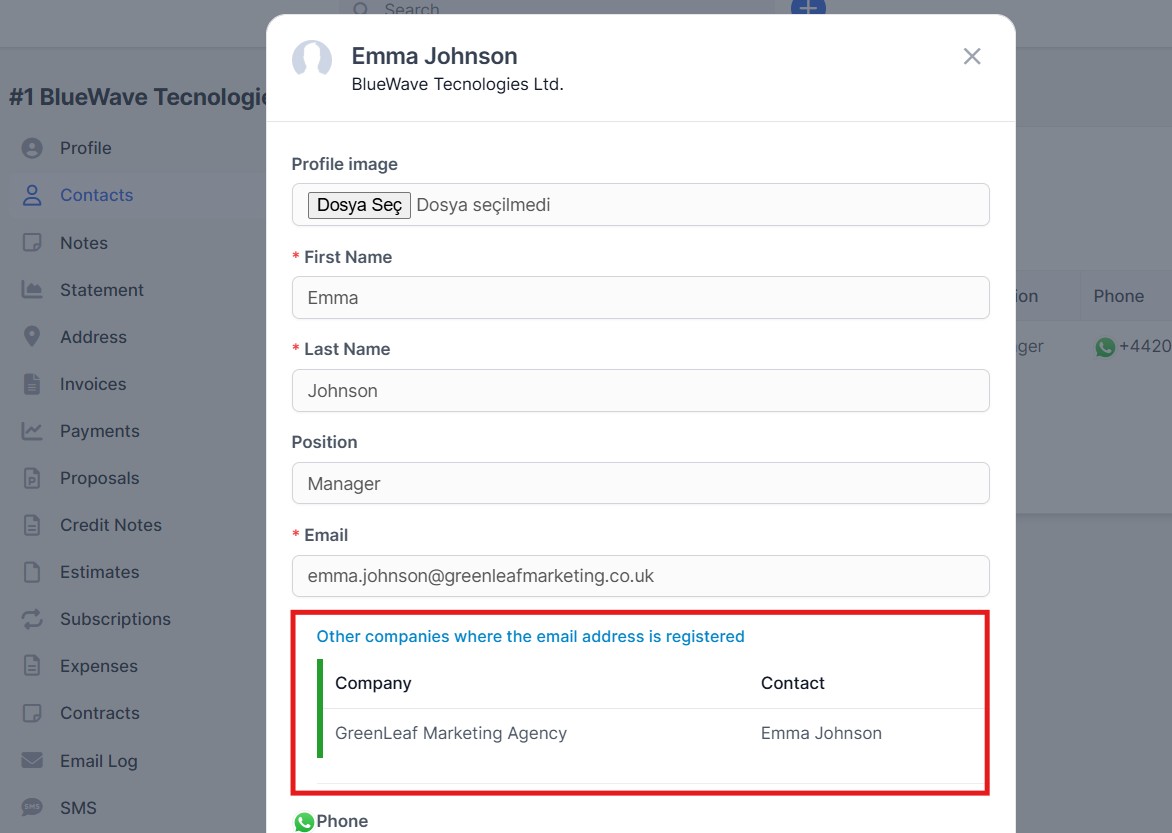
Auditing Linked Companies Inside Contact Details:
When you access the details page of a contact you created or edited, a table displaying the list of all companies linked to that single email will appear. This allows you to easily audit and verify which companies a user has access to from a single screen.
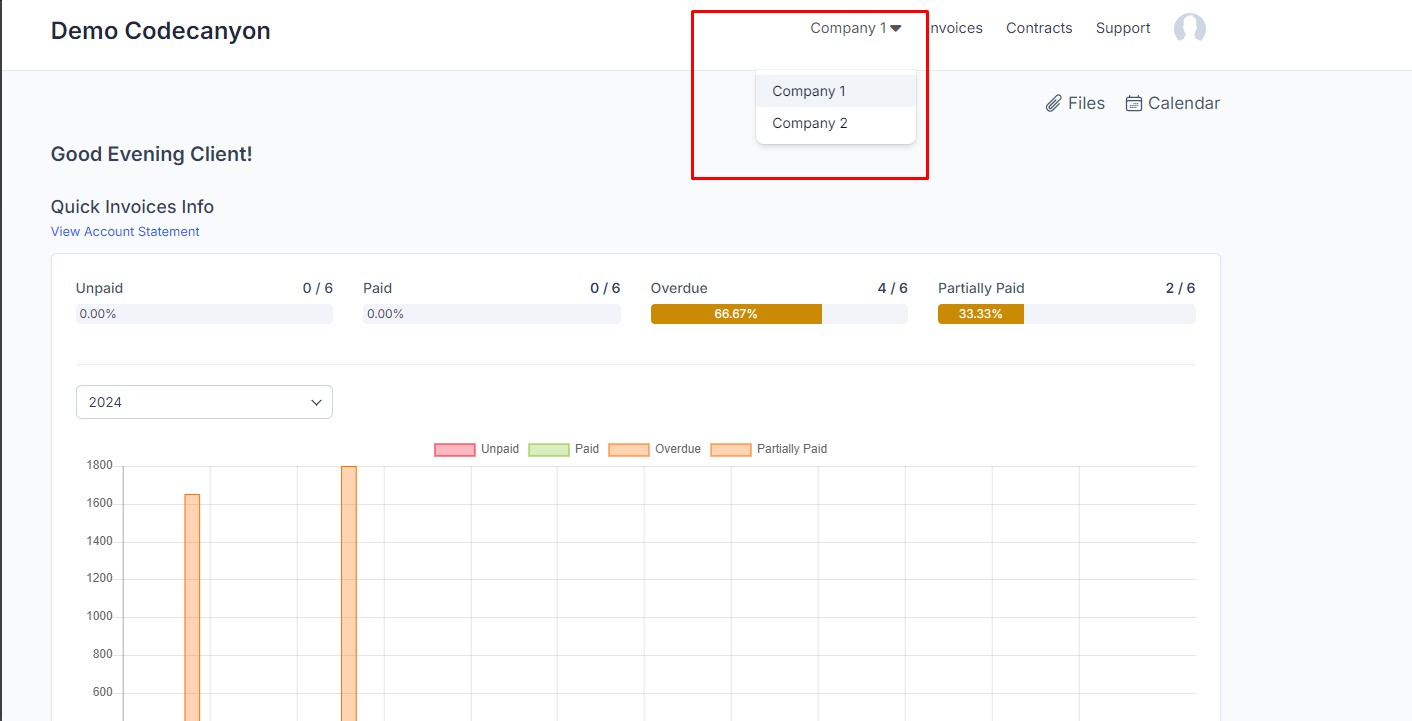
4. Client Portal: Login and Company Switching Interface
The experience for your client (contact) is entirely seamless and automated:
- The client logs into the standard customer portal using their single email address and password.
- Upon logging in, a sleek "Select Company" dropdown menu appears in the top-right navigation area (right next to their profile picture).
- The client selects the specific company they want to perform operations for from this dropdown.
- The moment a company is selected, the system refreshes the page context in the background and exclusively lists that company's Invoices, Contracts, Projects, Support Tickets, and Estimates.
5. Real-World Use Case Scenarios
Scenario A: Holding Company or Group Business Owners
Imagine a client who owns 3 distinct limited companies (e.g., Construction, Technology, and Logistics firms) and does business with you through each entity individually. With this module, your client logs into the portal using a single password; they can switch to the Construction company to pay an invoice, and pivot to the Technology company to review an active project within seconds.
Scenario B: Outsource Accountants or External Consultants
An external consultant or accountant might be managing the financial records or active projects for multiple clients of yours. Once you grant access to this consultant in the system, they can log in with their own email address and effortlessly switch between all the different client accounts they manage with a single click.
6. Frequently Asked Questions (FAQ) & Troubleshooting
a) Does data mix between different companies when switching accounts?
Absolutely not. The module utilizes Perfex CRM's native database isolation architecture. When a company is selected, only the financial and operational records associated with that specific company's ID (Customer Number) are fetched. There is no risk of data leakage or security vulnerabilities.
b) What happens if a client changes their account password?
When a client updates their password via the customer portal, this update applies to the contact profile across all linked companies. This ensures the single-credential structure remains intact.
c) The "Select Company" dropdown is not appearing in the top menu?
- Verify in the admin panel whether the logged-in contact (email address) is actually linked to more than one active customer/company profile. If the contact is associated with only one company, this menu automatically hides itself to keep the UI clean.
- If you are using a heavily customized customer portal theme, ensure that your custom layout fully supports and executes standard Perfex top navigation menu hooks.