Project Task Management (Task Manage)
Table of Contents
- Prerequisites and Installation
- Staff Permissions
- Menu and Navigation Layout
- Creating a Task Group
- Creating and Managing Tasks
- Sorting and Drag-and-Drop
- Milestones
- Integration with Projects
- Kanban / Diagram / Pipeline Views
- Troubleshooting & Frequently Asked Questions
1. Prerequisites & Installation
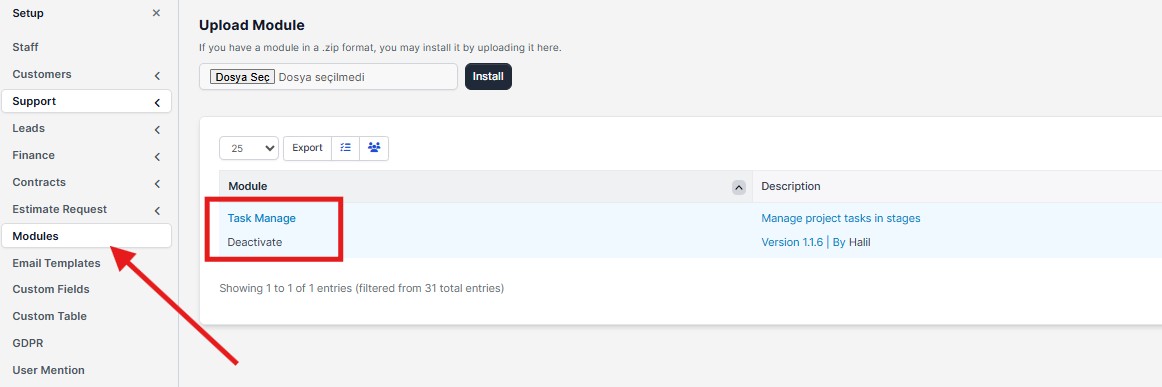
Before using the module:
- Make sure Perfex CRM is installed and working correctly.
- Extract the module files (zip) correctly and place them in the
modules/task_managedirectory on your server. - The required database tables must be created successfully by the
install.phpfile.
install.php file, you need to run this file on your server (or activate the module via the admin panel to trigger the install command). If you see any SQL errors during installation, please check your server logs.
2. Staff Permissions
After activating the module, you must set up user access rights for your staff. Please check these permissions:
- View/Add/Edit/Delete Task Groups
- View/Add/Edit/Delete Projects

Tip: Only allow authorized staff members to change a task group or pipeline. Otherwise, all users can change the sorting and order of tasks.
3. Menu and Navigation Layout
When the module is installed, you will see these items in the left sidebar menu or the main modules menu:
- Task Groups
- Task Group Pipeline
- Task Projects
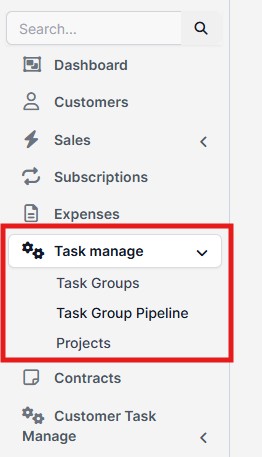
Each item in the menu opens its own page:
- Task Groups: A list of all task groups where you can edit, delete, and add new groups.
- Projects: A list to view and manage projects that are connected to the module task groups.
- Pipeline: A visual flow layout where you can manage your groups and tasks.
4. Creating a Task Group
To create a new task group:
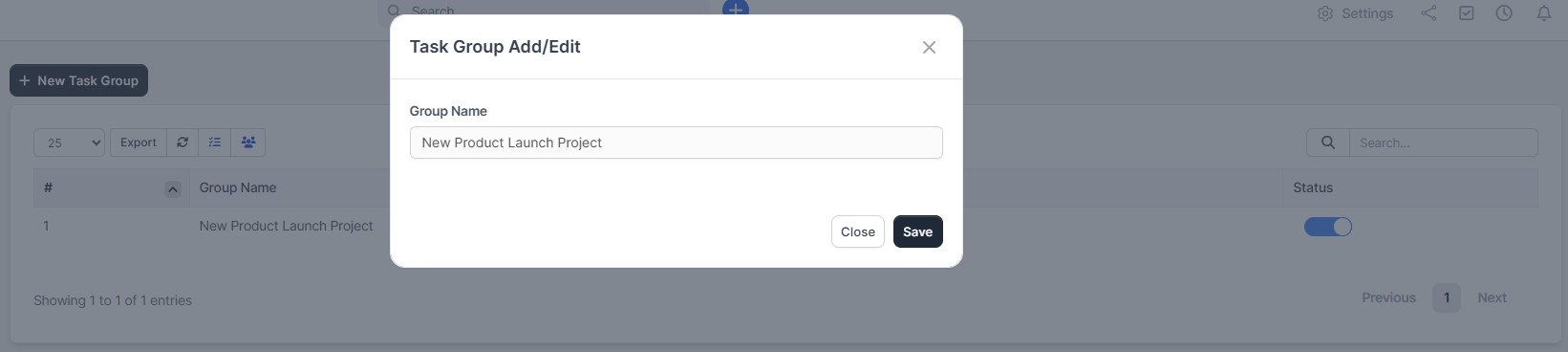
- Go to the Menu → Task Groups page.
- Click the Add New Task Group button.
- Type a name for the group.
- Click the save button.
5. Creating and Managing Tasks
You can select a task group and add new tasks to it. Typical fields when creating a task include:
- Task Name (Required)
- Description / Instructions
- Assigned Staff
- Duration / Estimated Time
- Start / Due Date
- Milestone
- Tags / Priority
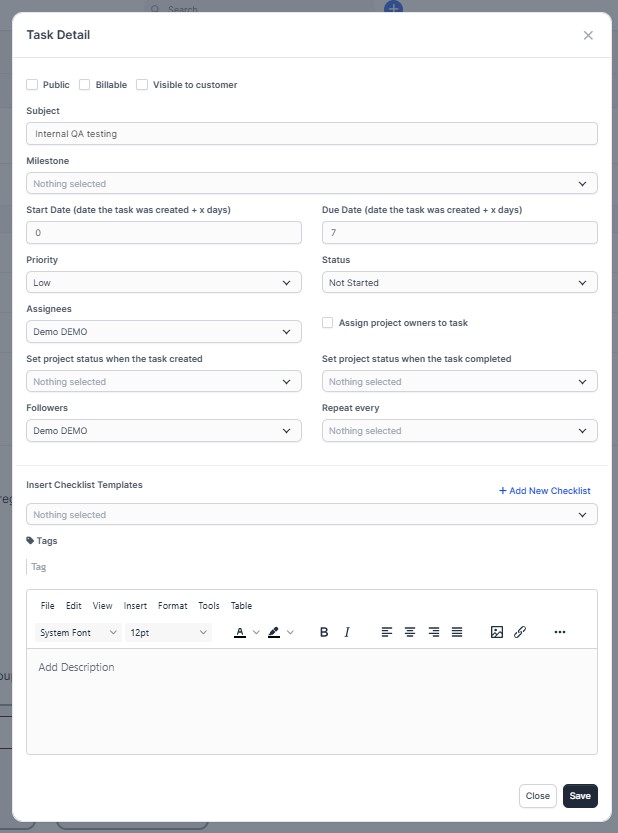
You can perform these actions on a task:
- Change the task status (e.g., Pending → In Progress → Completed)
- Assign or change the responsible staff member
6. Sorting & Drag-and-Drop
You can define the starting order of the tasks. Unsorted tasks are displayed at the top area. You can drag and drop these tasks into any group and position you want.
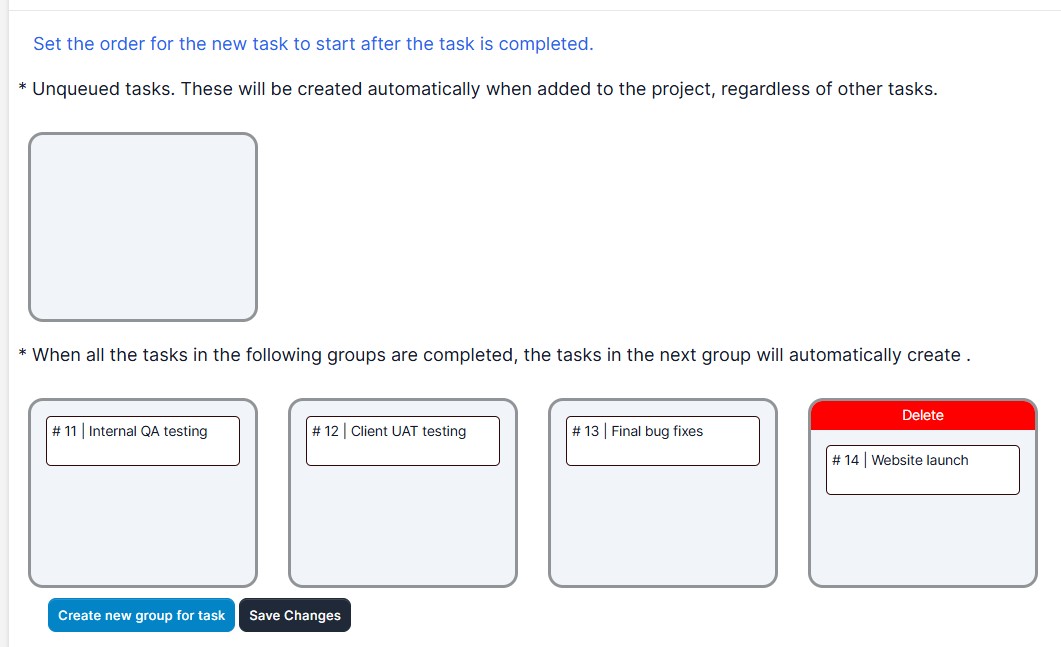
Tip: The system updates automatically when you make sorting changes. You do not need to look for a save button to confirm your changes.
7. Milestones
You can add milestones to each task group or project. Milestones are used to mark important steps or stages in a project.
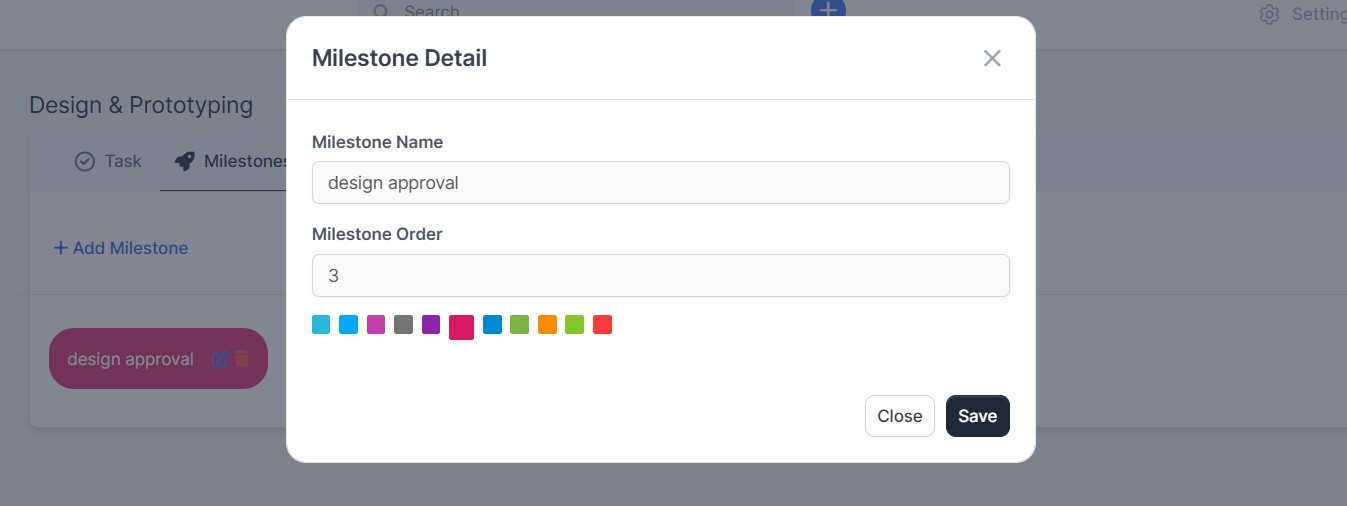
Steps to add a milestone:
- Create a new milestone: set a name, order, and color.
- Assign tasks to the milestone.
- When a milestone status is complete, check the status of the connected tasks.
8. Integration with Projects
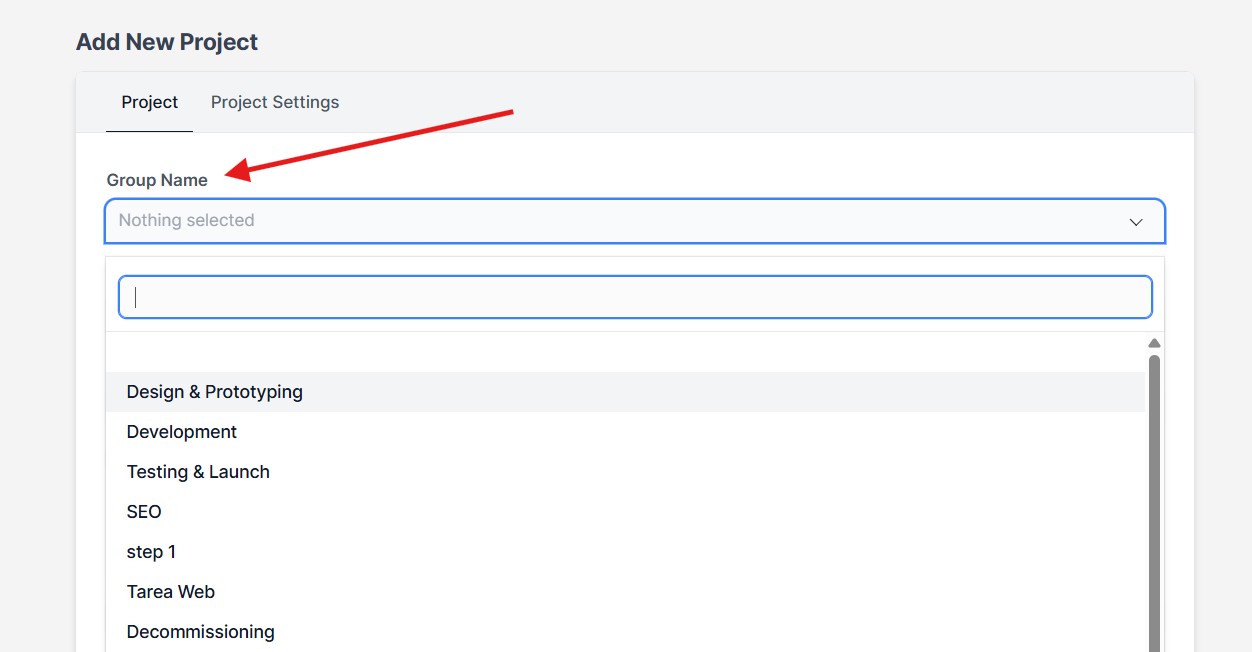
When creating a new project, you can select a task group from the module. This way, when the project starts, that group is assigned to the project and its tasks become project tasks.
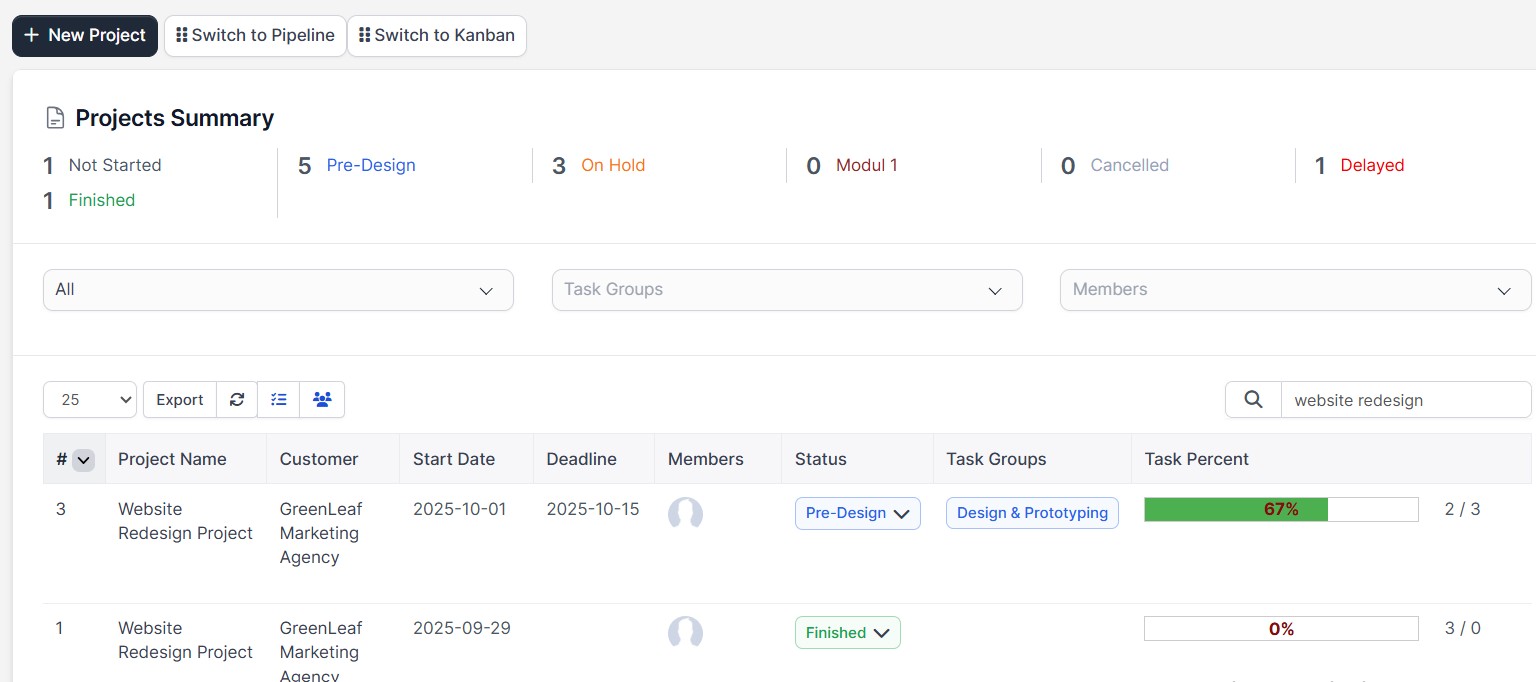
You can view the task groups assigned to a project from the project list:
9. Kanban / Diagram / Pipeline Views
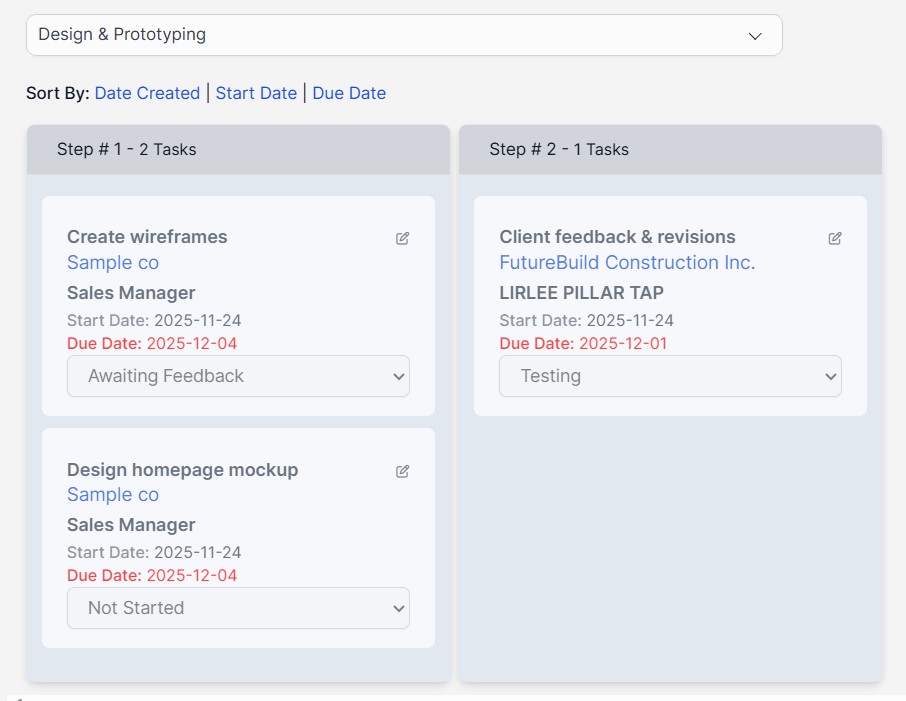
You can track task groups using a diagram or kanban view in the project. This view gives you a visual look at task stages and shows which tasks are waiting in line.
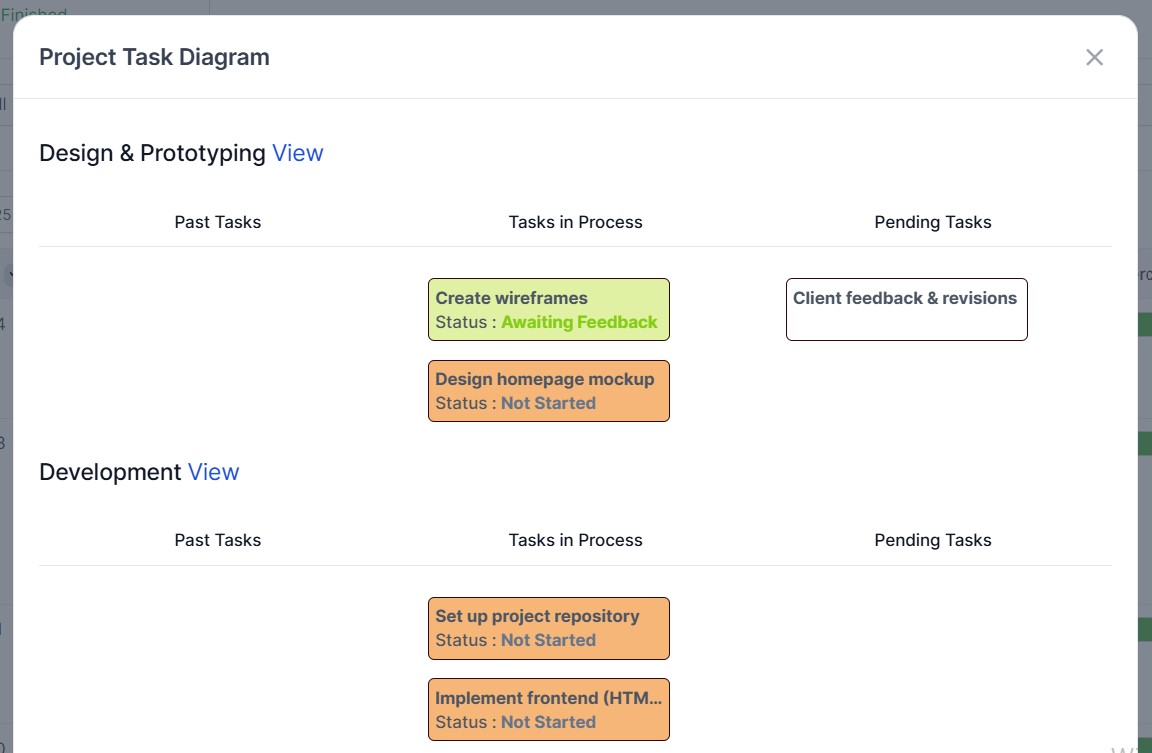
In the pipeline view, each task group has its own column.
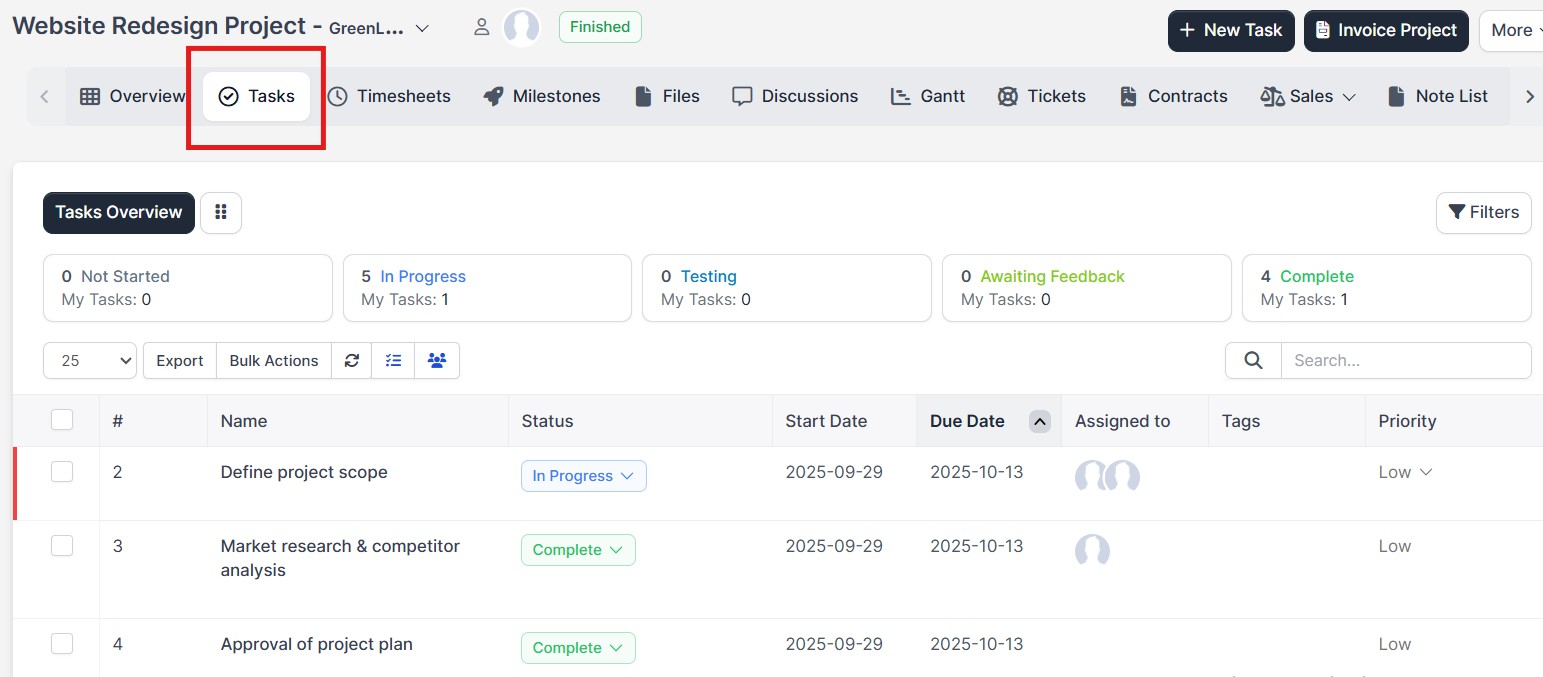
Inside the project details, you can use the "Tasks" panel to see the task processes and task list in full detail:
10. Frequently Asked Questions (FAQ) & Troubleshooting
a) The module is not visible / does not appear in the menu
- Check if the module is active (Go to Modules → Is it active?).
- Make sure the files are uploaded to the correct directory:
modules/task_manage. - Verify that the tables were created successfully using the
install.phpfile.
b) Drag-and-drop feature is not working
- Check your browser console for JS errors (specifically look if the
task_manage_js.jsfile loaded correctly). - Check staff permissions — the user must have permission to use drag-and-drop.
c) Tasks are not saving / sorting order disappears
- Check your server logs for database connection errors.
- Make sure user permissions are set correctly; some actions may require admin privileges.
Appendix: Sample Workflow (Step-by-Step User Guide)
- Activate the module and set up permissions for your staff.
- Create a new task group (e.g., "Product Launch Preparation").
- Add basic tasks to the group (e.g., Preparing Brief, Design, Content Creation).
- Add milestones if needed (e.g., First Demo, Final Approval).
- Assign this task group when creating a new project.
- Start the project and notify the assigned staff about their tasks.
- Move tasks forward by dragging them across the pipeline columns.
- Close completed tasks and check your milestone status.
Contact / Support
Feel free to contact us anytime for questions about the module, customization requests, or documentation support:
- CodeCanyon Profile: halilaltndg
- Support Email: halilyazilim1@gmail.com